Problem
You run pip install package-name, but the installation fails.
The error may look different depending on the package and your environment.
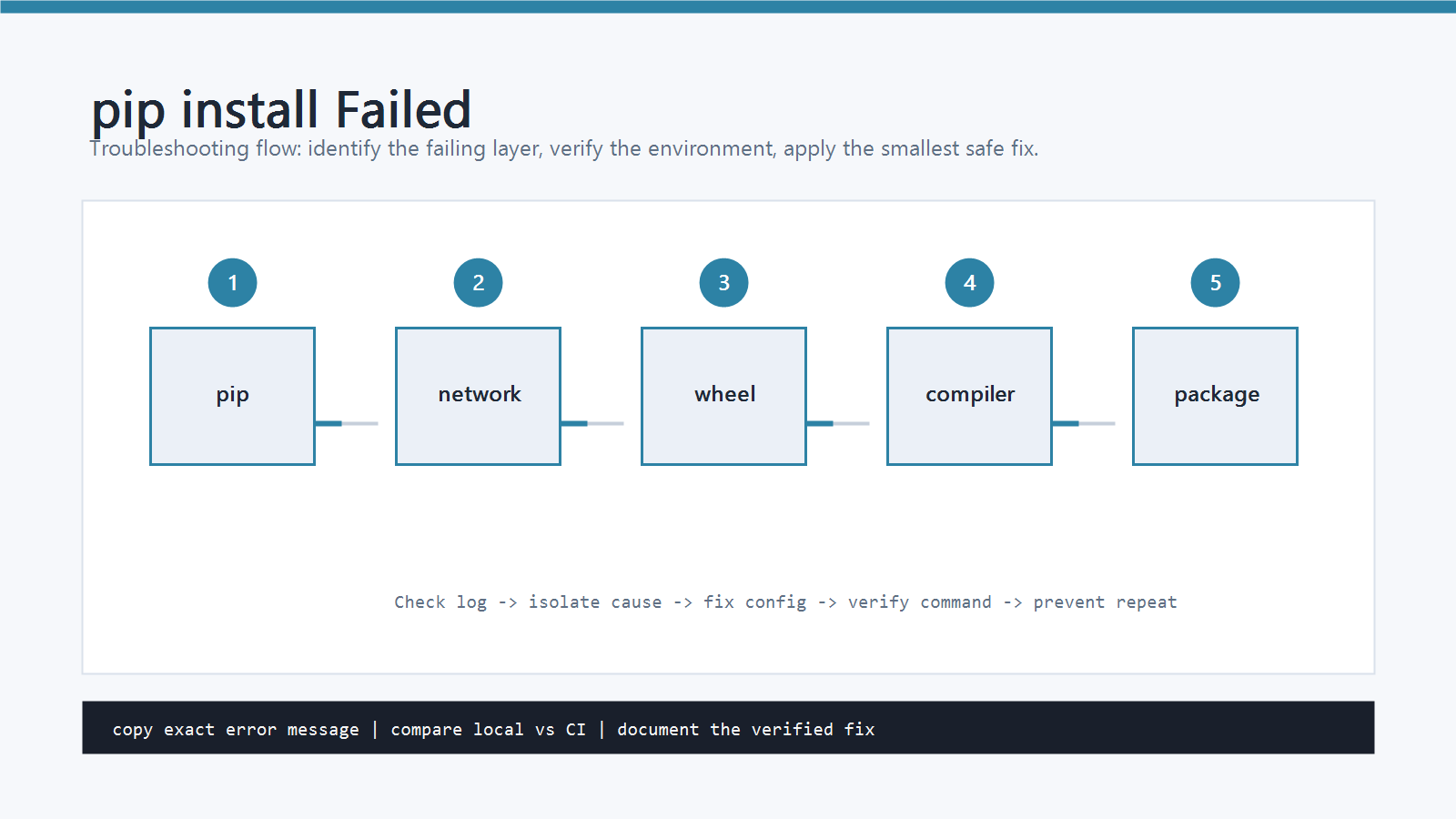
Common examples include:
ERROR: Could not find a version that satisfies the requirement package-name
ERROR: No matching distribution found for package-name
ERROR: Failed building wheel for package-name
PermissionError: [Errno 13] Permission denied
The important point is that pip install failed is not one single problem.
It can mean the package name is wrong, the Python version is unsupported, pip is outdated, the wrong environment is active, or the package needs build tools that are not installed.
Cause
Most failed pip install cases come from one of these causes.
- The package name is misspelled.
- The package does not support your Python version.
- You are using
pipfrom a different Python installation. - The virtual environment is not active.
pip,setuptools, orwheelis too old.- A proxy, firewall, or custom package index blocks the download.
- The package has native extensions and needs OS build dependencies.
- You do not have permission to install into the target Python environment.
Before changing many things at once, identify which Python and which pip you are actually using.
Quick Fix
Start with the safest fix: run pip through the Python interpreter you will use to run the code.
Windows
py -m pip --version
py -m pip install --upgrade pip setuptools wheel
py -m pip install package-name
macOS and Linux
python3 -m pip --version
python3 -m pip install --upgrade pip setuptools wheel
python3 -m pip install package-name
Replace package-name with the real package name.
For example, install requests with:
python -m pip install requests
Using python -m pip is more reliable than using plain pip because it ties the install command to a specific Python executable.
Step-by-Step Fix
1. Check Which Python Is Running
First, confirm the Python executable.
python -c "import sys; print(sys.executable)"
python -c "import sys; print(sys.version)"
On Windows, the Python launcher is often clearer:
py -0p
If you have multiple Python versions, this command shows which versions are installed and where they are located.
2. Check Which pip Is Running
Run:
python -m pip --version
The output should point to the Python environment you expect. If it points to a different folder, you are installing into the wrong environment.
For example, if your project uses .venv, the path should usually include .venv.
3. Activate the Virtual Environment
If the project has a virtual environment, activate it before installing packages.
Windows PowerShell:
.\.venv\Scripts\Activate.ps1
python -m pip install package-name
Command Prompt:
.venv\Scripts\activate.bat
python -m pip install package-name
macOS and Linux:
source .venv/bin/activate
python -m pip install package-name
If activation fails on PowerShell, the execution policy may be blocking scripts. Use this once for the current user:
Set-ExecutionPolicy -Scope CurrentUser RemoteSigned
Then open a new terminal and activate the environment again.
4. Upgrade pip, setuptools, and wheel
Old packaging tools often cause wheel build errors.
python -m pip install --upgrade pip setuptools wheel
Then retry:
python -m pip install package-name
5. Check the Package Name
Some import names and install names are different.
Examples:
| Import name | pip package name |
|---|---|
cv2 |
opencv-python |
PIL |
Pillow |
sklearn |
scikit-learn |
yaml |
PyYAML |
If pip says No matching distribution found, check the package’s official documentation or PyPI page for the correct install name.
6. Check Python Version Support
Some packages do not support every Python version. Check your version:
python --version
If you are using a very new Python version, the package may not have published compatible wheels yet. If you are using an old Python version, the package may have dropped support.
In that case, create a virtual environment with a supported Python version.
7. Handle Permission Errors
If the failure contains PermissionError or Access is denied, avoid forcing a global install.
Use a virtual environment instead.
python -m venv .venv
Then activate it and install the package there. This is safer than using administrator permissions for every install.
How to Verify
After the install succeeds, verify both the package metadata and the import.
python -m pip show package-name
python -c "import package_name; print('import ok')"
The package name used by pip show may differ from the module name used by import.
For example:
python -m pip show opencv-python
python -c "import cv2; print(cv2.__version__)"
Also confirm that your app runs from the same environment:
python -c "import sys; print(sys.executable)"
Common Mistakes
- Running
pip installin one terminal, then running the app with another Python interpreter. - Installing globally when the project actually uses
.venv. - Copying package names with smart quotes or hidden characters.
- Using
sudo pip installas the first solution on Linux. - Ignoring the first error line and only searching for the last line.
- Deleting
node_modulesstyle folders out of habit. Python packages are not managed that way.
Professional Depth Check
For How to Fix pip install Failed in Python, the practical standard is not whether the reader can repeat one instruction once. Treat the topic as a reproducible debugging procedure: verify interpreter path, virtual environment, package version, and input file or data boundary before drawing a conclusion. The result should be written as a small decision record, because future readers need to know which fact was observed, which assumption was used, and which condition would change the answer.
Related Posts
- How to Fix ModuleNotFoundError in Python
- How to Fix “No Module Named” Errors in Python
- How to Fix PermissionError: [Errno 13] Permission denied in Python
FAQ
When should I use this guide?
Use it when you can reproduce the error and need a practical order for checking commands, versions, paths, permissions, and logs.
What should beginners verify first?
Start with the exact error message, the command you ran, the operating system, and the tool version. These details usually narrow the cause faster than changing many settings at once.
Which keywords should I search next?
Search for “How to Fix pip install Failed in Python” together with the exact error text, version, operating system, and tool name used in your environment.


Leave a comment