Quick Answer
Spring Boot uses port 8080 by default for many web applications.
If another process is already listening on that port, the application cannot start.
Find the process using the port, stop the correct process, or change the Spring Boot port with server.port.
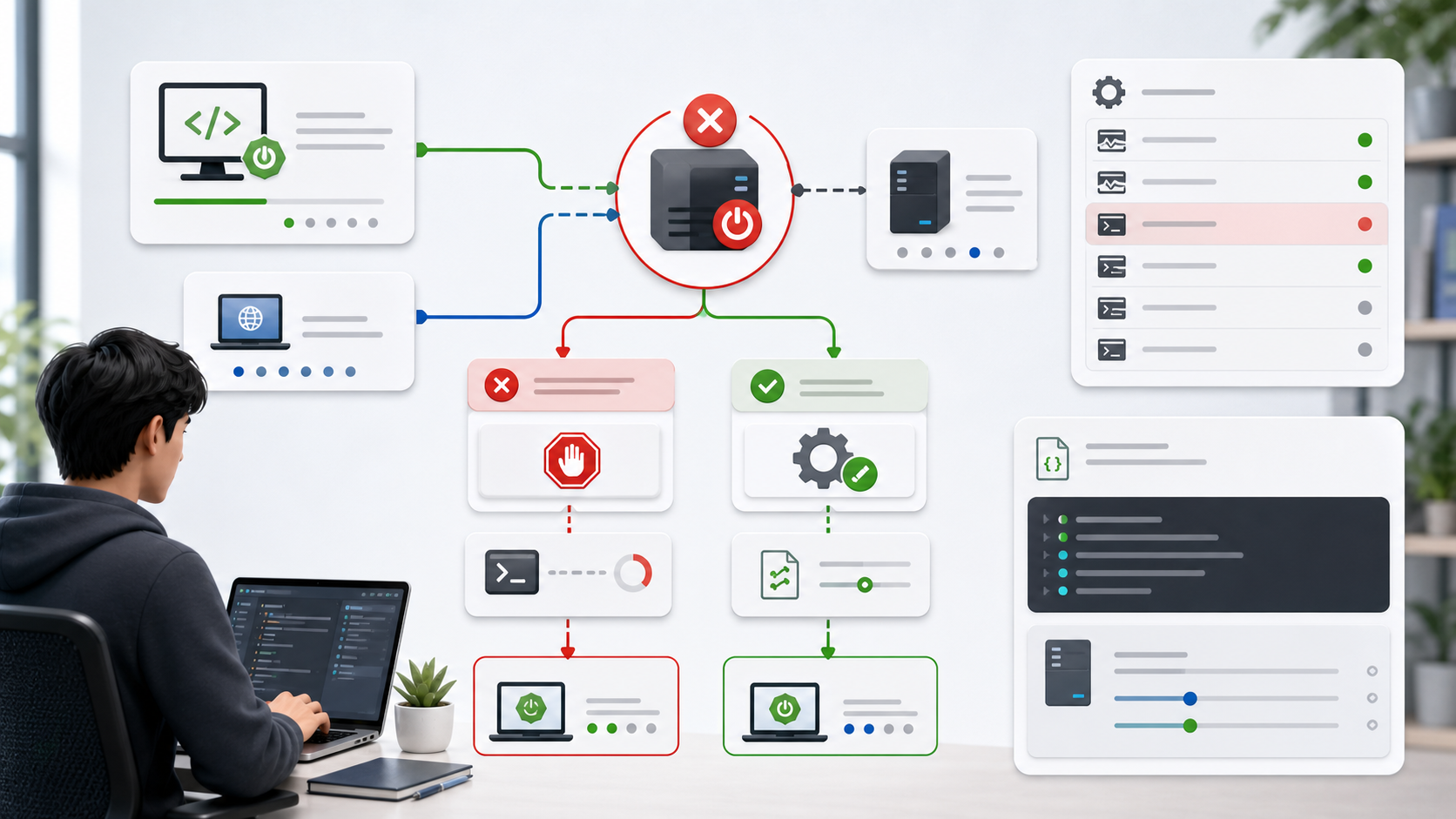
The image shows the two normal fixes. Either free the occupied port, or start the application on a different port. Do not kill random processes until you know what is using the port.
Typical Error
The message may look like this:
Web server failed to start. Port 8080 was already in use.
You may see it when running:
./gradlew bootRun
mvn spring-boot:run
java -jar app.jar
The application itself may be fine. The failure happens before it can bind the embedded web server to the port.
1. Check Which Process Uses the Port
On Windows PowerShell:
Get-NetTCPConnection -LocalPort 8080 | Select-Object LocalAddress,LocalPort,State,OwningProcess
Then inspect the process:
Get-Process -Id <PID>
On macOS or Linux:
lsof -i :8080
or:
ss -ltnp | grep ':8080'
The goal is to identify the owner. It might be another Spring Boot app, a Node dev server, a container port mapping, an IDE run configuration, or a local proxy.
2. Stop the Correct Process
If the process is an old dev server, stop it normally first. Use the terminal where it is running and press:
Ctrl+C
If it is running from an IDE, stop the run configuration. If it is a container, stop the container.
Only kill the process when you are sure it is safe.
Windows:
Stop-Process -Id <PID>
macOS or Linux:
kill <PID>
If normal stop fails:
kill -9 <PID>
Use force only as a last resort. You may interrupt a database, proxy, or another developer tool if you kill the wrong process.
3. Change the Spring Boot Port
If you want both services to run, change your application port.
In src/main/resources/application.properties:
server.port=8081
In application.yml:
server:
  port: 8081
You can also pass it at runtime:
java -jar app.jar --server.port=8081
For Gradle:
./gradlew bootRun --args='--server.port=8081'
This is the cleanest solution when multiple services need to run together.
4. Use a Random Port for Tests
For tests or temporary local runs, you can use a random available port:
server.port=0
This is useful for integration tests where the exact port does not matter. For a normal local app, a fixed development port is usually easier because browser URLs, frontend proxies, and documentation stay predictable.
5. Check IDE and DevTools Restarts
Sometimes the old application did not fully stop. This can happen when:
- The IDE still has a run session active.
- Spring Boot DevTools restarted the app.
- A previous terminal process is still running in the background.
- A Docker container maps host port 8080.
- Another profile sets a different port than expected.
Check active run sessions in the IDE. Also check containers:
docker ps
If a container maps 0.0.0.0:8080->..., it owns the host port.
Stop the container or change the port mapping.
6. Verify the Fix
After stopping the process or changing the port, start the app again.
./gradlew bootRun
Then verify the port:
curl http://localhost:8081/
If your app exposes Actuator health:
curl http://localhost:8081/actuator/health
If you changed the backend port, update any frontend proxy, API base URL, Docker Compose mapping, or README command that still points to 8080.
Common Mistakes
The first mistake is killing a process without checking what it is. Port conflicts are local, and another important service may be using the port.
The second mistake is changing server.port in the wrong profile.
If you run with spring.profiles.active=dev, check application-dev.properties or application-dev.yml.
The third mistake is changing the backend port but not updating the frontend proxy. The app starts, but API calls fail.
The fourth mistake is forgetting Docker port mappings.
A stopped Java process does not help if a container still owns host port 8080.
Professional Depth Check
For Spring Boot Port 8080 Already in Use: How to Find the Process and Change the Port, the practical standard is not whether the reader can repeat one instruction once. Treat the topic as a reproducible debugging procedure: verify JDK version, build tool configuration, classpath or module path, and runtime stack trace before drawing a conclusion. The result should be written as a small decision record, because future readers need to know which fact was observed, which assumption was used, and which condition would change the answer.
Evidence That Makes the Guidance Reliable
Use objective evidence before changing a workflow. Good evidence includes java -version, javac -version, Maven or Gradle output, and the smallest failing class. If two pieces of evidence conflict, keep the conflict visible instead of smoothing it over. For example, a successful quick fix is still weak evidence if the same input, account, dependency, or device state has not been tested again. A durable article should help the reader distinguish a confirmed fix from a plausible fix.
Related Reading
- Java Error: Cannot Find Symbol
- Java Error: Incompatible Types
- Spring Boot application properties: server.port
Final Checklist
[ ] Confirm the error is a port binding error.
[ ] Find the process using the port.
[ ] Stop the correct process or choose a new port.
[ ] Set `server.port` in the active profile.
[ ] Restart the app.
[ ] Update frontend proxies, Docker mappings, and docs if the port changed.
Most port 8080 already in use errors are not Spring logic bugs.
They are local environment conflicts.
Find the owner of the port first, then choose whether to free it or move your app.
FAQ
When should I use this guide?
Use it when you can reproduce the error and need a practical order for checking commands, versions, paths, permissions, and logs.
What should beginners verify first?
Start with the exact error message, the command you ran, the operating system, and the tool version. These details usually narrow the cause faster than changing many settings at once.
Which keywords should I search next?
Search for “Spring Boot Port 8080 Already in Use: How to Find the Process and Change the Port” together with the exact error text, version, operating system, and tool name used in your environment.


Leave a comment