Malicious or over-permissioned apps can expose texts, notifications, contacts, and files. Start with: review sms, notification, and accessibility permissions first. Then preserve evidence, verify through a separate route, and recover accounts in order.
A phone is an authenticator, wallet, photo archive, and work notification center, so permissions and lock screen settings are account security basics.
Use this as a response routine for accessibility permission: act through official routes, keep records, and involve the right owner when money, work, or family accounts are exposed.
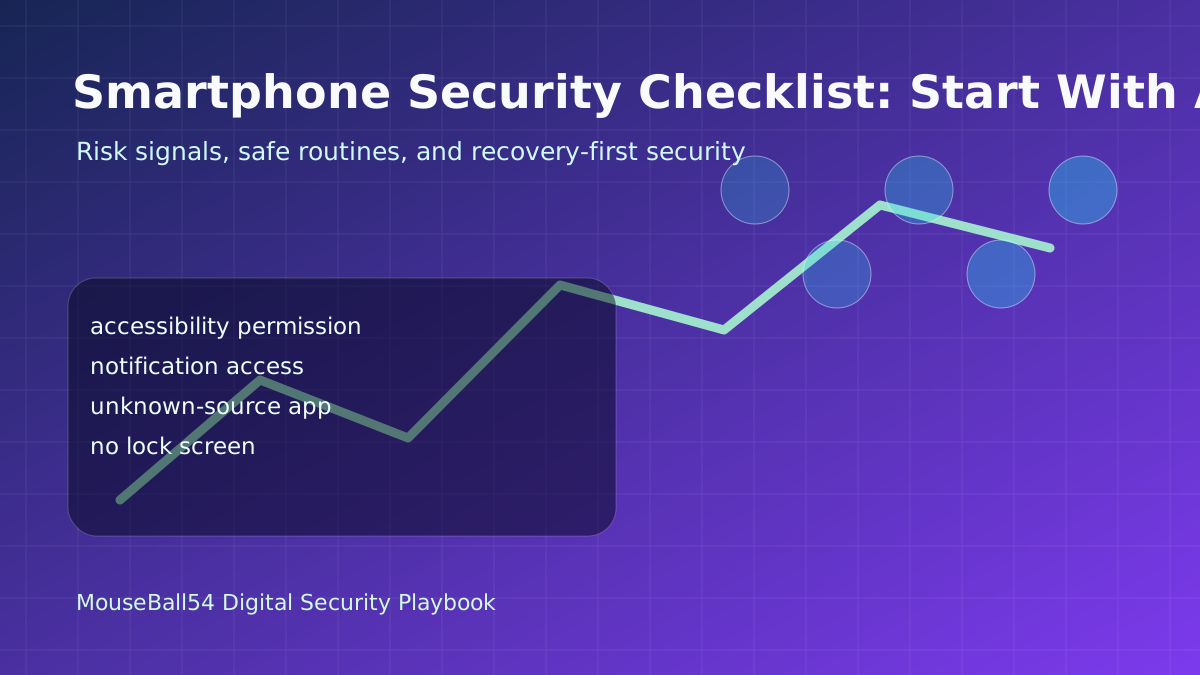
What Can Go Wrong
Malicious or over-permissioned apps can expose texts, notifications, contacts, and files.
This attack pattern works by pulling users away from normal routes. When accessibility permission appears, do not solve the problem inside the message thread. Instead, enable screen lock and find-my-device features so evidence and recovery options stay under your control.
For accessibility permission, notification access, the baseline is pause, verify separately, preserve records, and keep recovery possible. Even without deep technical knowledge, those steps slow account takeover and financial loss.
Warning Signals To Check First
- accessibility permission: Do not fix the issue inside the message or app that triggered it. Recheck through a saved bookmark, official app, or another trusted route.
- notification access: Preserve screenshots, sender details, payment requests, and login history first. Evidence makes blocking, reporting, and recovery more reliable.
- unknown-source app: Define the recovery order: password change, MFA reset, connected-device review, and payment alert checks. Handle important accounts one at a time.
- no lock screen: If family, work, customer data, or payment authority is involved, tell the responsible person quickly. Fast reporting limits the damage.
Practical Setup Order
- Review SMS, notification, and accessibility permissions first.
- Enable screen lock and find-my-device features.
- Block installation outside official app stores.
If family members or teammates are involved, share one verification phrase and one pause rule. A simple rule such as ‘Review SMS, notification, and accessibility permissions first’ is easier to follow under pressure than improvising.
If You Already Made a Mistake
If you already acted on accessibility permission, organize the timeline instead of hiding the mistake. Change passwords, review payment methods, capture login history, and check connected devices before evidence disappears.
If work accounts, customer data, or payment authority are connected to accessibility permission, tell the responsible person quickly. Fast reporting is a security control, not an admission of failure.
Monthly Checkup
- Review SMS, notification, and accessibility permissions first.
- Enable screen lock and find-my-device features.
- Block installation outside official app stores.
- Review login history and connected devices together.
- Record the date and reason when you change a security setting.
Professional Depth Check
For Smartphone Security Checklist: Start With App Permissions and Lock Screen, the practical standard is not whether the reader can repeat one instruction once. Treat the topic as a security prevention and recovery routine: verify account access, device state, recovery channel, and evidence preservation before drawing a conclusion. The result should be written as a small decision record, because future readers need to know which fact was observed, which assumption was used, and which condition would change the answer.
Evidence That Makes the Guidance Reliable
Use objective evidence before changing a workflow. Good evidence includes login history, alert emails, transaction records, and device and browser versions. If two pieces of evidence conflict, keep the conflict visible instead of smoothing it over. For example, a successful quick fix is still weak evidence if the same input, account, dependency, or device state has not been tested again. A durable article should help the reader distinguish a confirmed fix from a plausible fix.
Review Table
| Review Item | What To Confirm | Why It Matters |
|---|---|---|
| Scope | The exact case covered by this article | Prevents over-applying the advice |
| Baseline | The state before any change | Makes rollback and comparison possible |
| Change | The smallest action taken | Reduces hidden side effects |
| Result | The observed output after the change | Separates evidence from expectation |
| Recheck | When to revisit the conclusion | Keeps the post accurate over time |
Edge Cases and Failure Modes
The main risks are resetting evidence before screenshots are captured, and reusing compromised recovery channels. When the situation involves production data, personal information, money, health, legal rights, or security recovery, the conservative path is to stop and collect evidence before applying a broad fix. The same title can describe very different cases, so the reader should compare their environment with the assumptions in the post before copying commands or decisions.
Maintenance Standard
Recheck this guidance after suspicious messages, account alerts, device changes, or breach notices. A useful update does not need to rewrite the entire post; it should confirm whether the examples, links, commands, screenshots, and decision criteria still match current behavior. If the old conclusion remains valid, record the check date. If it changes, explain what changed and why the previous advice is no longer enough.


Leave a comment