Problem
A pull request or push shows a failed GitHub Actions check:
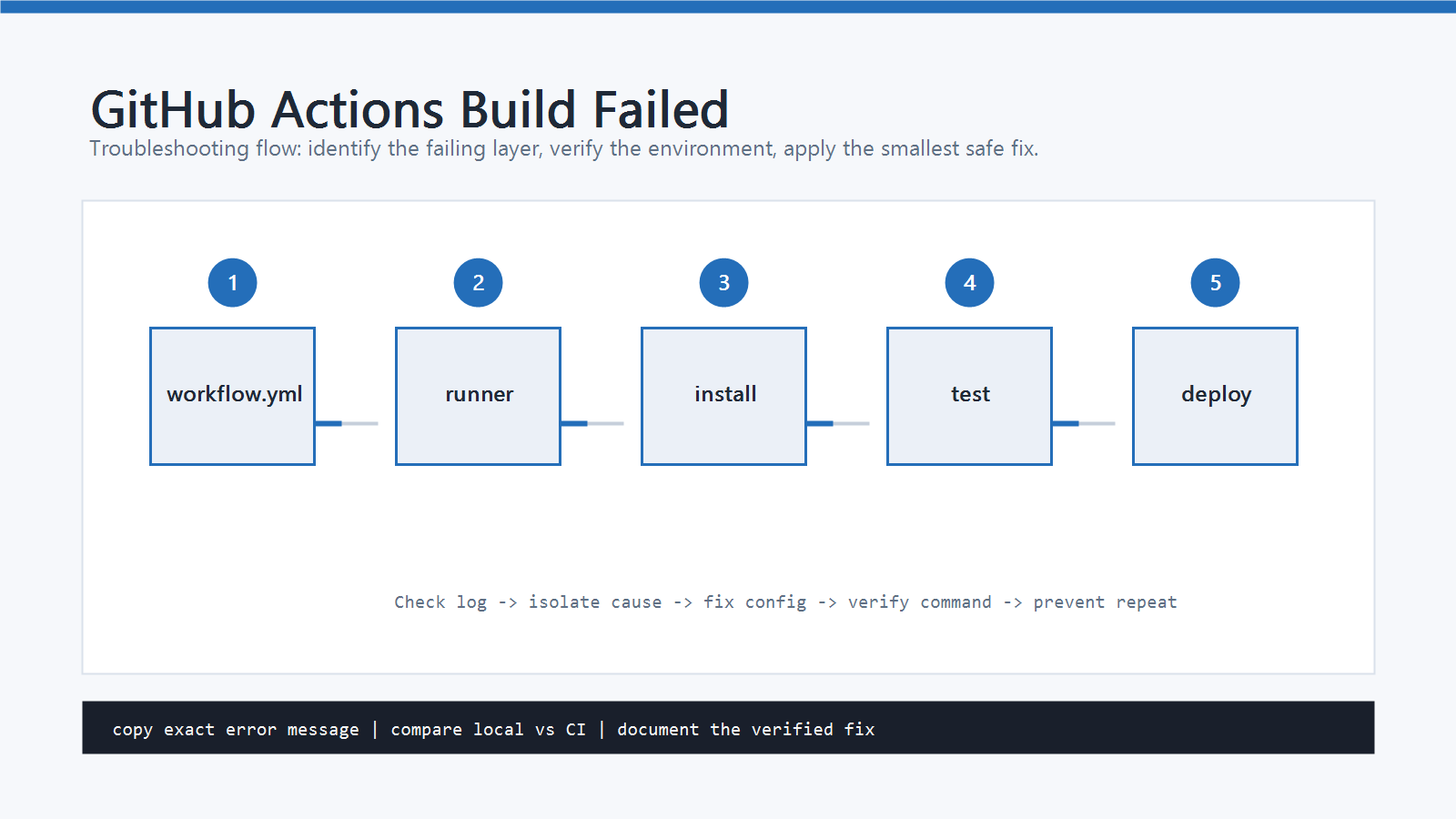
build failed
Process completed with exit code 1
or:
The workflow is not valid
The fix depends on where the failure happened. Do not start by editing random YAML. Open the failed workflow run, find the failed job, and read the first failed step.
Cause
GitHub Actions builds usually fail for one of these reasons:
- The workflow file has invalid YAML or is in the wrong path.
- The workflow trigger does not match the branch or event.
- Dependencies were not installed before the build step.
- The CI runner uses a different Node, Python, Java, or Ruby version.
- A secret or environment variable is missing.
- A test, lint, typecheck, or build command really failed.
- A cache restored stale dependencies.
- The deploy step has insufficient permissions.
GitHub workflow files must be stored under .github/workflows and use .yml or .yaml.
If the file itself is invalid, every new commit can create a failed workflow run until the YAML is fixed.
Quick Diagnosis
Open the failing run:
- Go to the repository on GitHub.
- Open the Actions tab.
- Select the failed workflow.
- Open the failed run.
- Click the failed job.
- Expand the failed step and read the first real error.
If you use GitHub CLI, check recent runs:
gh run list
gh run view --log
Search the log for:
Error:
failed
exit code
not found
permission
The useful error is often above Process completed with exit code 1.
Step-by-Step Fix
1. Fix Invalid Workflow YAML
A valid workflow file should be under:
.github/workflows/ci.yml
Basic example:
name: CI

on:
  push:
    branches: [main]
  pull_request:

jobs:
  build:
    runs-on: ubuntu-latest
    steps:
      - uses: actions/checkout@v4
      - name: Show working directory
        run: pwd
Check for:
- tabs instead of spaces
- wrong indentation
- missing colon
- duplicate keys
- file saved outside
.github/workflows - unsupported expression syntax
YAML errors must be fixed before package or test errors matter.
2. Confirm the Trigger
If the workflow does not run when expected, check on.
This only runs on pushes to main:
on:
  push:
    branches: [main]
If you are testing in a feature branch, add pull_request or include that branch.
on:
  push:
  pull_request:
If paths or paths-ignore is configured, the workflow may skip changes outside those paths.
3. Match Runtime Versions
CI often fails because the runner version differs from local development.
Node example:
- uses: actions/setup-node@v4
  with:
    node-version: 20
    cache: npm

- run: npm ci
- run: npm run build
Python example:
- uses: actions/setup-python@v5
  with:
    python-version: "3.12"

- run: python -m pip install -r requirements.txt
- run: pytest
Use the same version as .nvmrc, .python-version, package.json, pyproject.toml, or project documentation.
4. Use the Right Install Command
Use lockfile-aware commands in CI.
For npm projects:
- run: npm ci
- run: npm test
- run: npm run build
For pnpm:
- uses: pnpm/action-setup@v4
- run: pnpm install --frozen-lockfile
- run: pnpm build
For Bundler:
- run: bundle install
- run: bundle exec jekyll build --trace
If the log says command not found, install the tool or use the setup action before running it.
5. Check Secrets and Permissions
If the log mentions authentication, token, or permission errors, check repository secrets and workflow permissions.
Common symptoms:
Context access might be invalid: SECRET_NAME
Resource not accessible by integration
Permission denied
Make sure the secret exists in:
Settings > Secrets and variables > Actions
For workflows that push, deploy, or publish packages, check permissions:
permissions:
  contents: read
  pages: write
  id-token: write
Only grant the permissions the job needs.
6. Reproduce the Failing Command Locally
Run the same command from the failed step:
npm ci
npm run build
or:
bundle install
bundle exec jekyll build --trace
If it fails locally, fix the project. If it only fails in GitHub Actions, compare versions, environment variables, file paths, and OS differences.
7. Clear Cache Only When the Log Points There
Cache issues happen, but they are not the first assumption.
If dependency errors remain after lockfile changes, temporarily disable cache or change the cache key. Do not delete lockfiles just to make CI green. The lockfile is part of the reproducible build.
How to Verify
After fixing the workflow or project files:
git add .
git commit -m "Fix CI build"
git push
Then check:
- The workflow starts on the expected branch or pull request.
- The previously failed step now passes.
- Tests and build both pass.
- Deploy steps have the expected permissions.
If the workflow fails again at a later step, treat it as a new error and read that step’s log.
Common Mistakes
- Reading only
exit code 1and missing the real error above it. - Editing the wrong workflow file.
- Using
npm installin CI when the project expectsnpm ci. - Forgetting to install the runtime before running commands.
- Relying on local secrets that do not exist in GitHub Actions.
- Giving broad permissions instead of fixing the required permission.
- Deleting the lockfile to avoid dependency conflicts.
Official References
Professional Depth Check
For How to Fix GitHub Actions Build Failed, the practical standard is not whether the reader can repeat one instruction once. Treat the topic as a reproducible debugging procedure: verify runtime environment, exact error boundary, minimal reproduction, and rollback path before drawing a conclusion. The result should be written as a small decision record, because future readers need to know which fact was observed, which assumption was used, and which condition would change the answer.
Related Posts
- How to Fix Git Failed to Push Some Refs Error
- How to Resolve Git Merge Conflicts
- How to Fix Git fatal: could not read Username Error
FAQ
When should I use this guide?
Use it when you can reproduce the error and need a practical order for checking commands, versions, paths, permissions, and logs.
What should beginners verify first?
Start with the exact error message, the command you ran, the operating system, and the tool version. These details usually narrow the cause faster than changing many settings at once.
Which keywords should I search next?
Search for “How to Fix GitHub Actions Build Failed” together with the exact error text, version, operating system, and tool name used in your environment.


Leave a comment