Problem
You run a Node.js script and see an error like this:
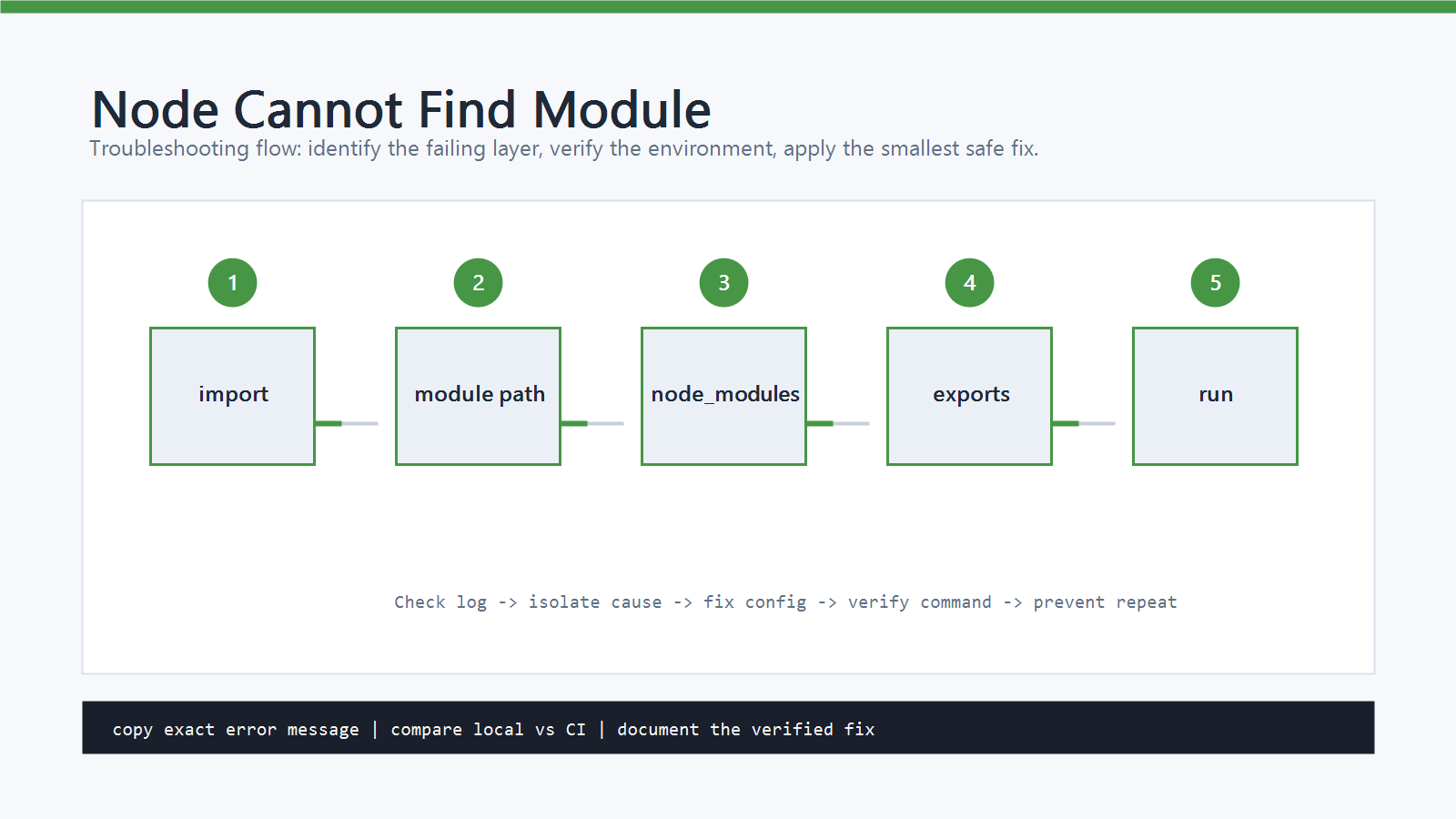
Error: Cannot find module 'package-name'
or:
Error: Cannot find module './utils/file'
This means Node tried to resolve the value passed to require() or import, but it could not find a matching package, file, or exported path.
The important detail is the module name inside the quotes.
That name tells you whether the problem is a package install issue, a local file path issue, or a module format issue.
Cause
Cannot find module usually comes from one of these causes:
- The package is not installed in the current project.
node_moduleswas deleted or installed in a different folder.- The command is being run from the wrong working directory.
- A local import path is missing
./,../, or the correct file name. - The project mixes CommonJS and ESM syntax incorrectly.
- The package blocks deep imports through the
exportsfield inpackage.json. - The path works on a case-insensitive machine but fails on Linux or CI.
Node resolves package names and file paths differently, so start by classifying the import.
Quick Fix
If the missing value is a package name such as express, react, or lodash, install it in the project:
npm install package-name
npm ls package-name
If the missing value starts with ./, ../, or /, it is a file path.
Check the actual file name and relative location instead of installing a package.
Use this command to confirm where Node is running from:
node -p "process.cwd()"
If the current directory is not the project root, move to the folder that contains package.json and run the command again.
Step-by-Step Fix
1. Check Whether It Is a Package or a File
This is a package import:
const express = require("express");
This is a local file import:
const helper = require("./utils/helper.js");
For a package import, Node looks in node_modules folders starting near the current module and then walking up parent directories.
For a local file import, Node follows the relative path from the importing file.
Do not run npm install utils/helper.
If the path is local, fix the path.
2. Reinstall the Missing Package
For package imports, run:
npm install package-name
npm ls package-name
If npm ls shows (empty) or an error, the package is not installed in this project.
If your project uses a lockfile, prefer the package manager already used by the repo:
npm install
For yarn or pnpm projects, use the matching command instead of mixing lockfiles:
yarn install
pnpm install
3. Confirm the Working Directory
Many Cannot find module errors happen because the command is started from the wrong folder.
Check:
pwd
node -p "process.cwd()"
ls package.json
Windows PowerShell:
Get-Location
node -p "process.cwd()"
Get-ChildItem package.json
If package.json is not in the current folder, move to the project root:
cd path/to/project
npm install
node app.js
4. Fix Relative Paths
For local files, the most common mistake is forgetting ./.
Wrong:
const helper = require("utils/helper");
Right:
const helper = require("./utils/helper.js");
utils/helper looks like a package name.
./utils/helper.js tells Node to load a file relative to the current module.
Also check file name case:
require("./UserService.js");
This may work on Windows even if the file is named userService.js, but it can fail on Linux CI or production servers.
5. Check CommonJS and ESM Rules
CommonJS uses require():
const helper = require("./helper.js");
ESM uses import:
import helper from "./helper.js";
If package.json contains "type": "module", .js files are treated as ESM by default.
In ESM, local imports should include the file extension:
import { formatName } from "./format-name.js";
If you need CommonJS in an ESM project, use .cjs:
const config = require("./config.cjs");
If you need ESM in a CommonJS project, use .mjs or convert the project intentionally.
Do not switch "type": "module" only to silence one error without checking the rest of the codebase.
6. Check Package Export Paths
Some packages allow this:
import thing from "some-package";
but block this:
import thing from "some-package/internal/file";
Modern packages can restrict which subpaths are public through the exports field.
If a deep import fails, check the package documentation and import from a supported public path.
This matters during upgrades because an internal path that worked in an older package version can disappear in a newer one.
7. Use require.resolve for Diagnosis
In a CommonJS script, you can ask Node where it would load a package from:
node -p "require.resolve('package-name')"
If Node cannot resolve it, the command throws a MODULE_NOT_FOUND error.
That confirms the problem is resolution, not your application logic.
For local paths, test the exact path:
node -p "require.resolve('./utils/helper.js')"
Run this from the same directory and with the same command style that produced the original error.
How to Verify
After applying the fix, rerun the exact command that failed:
node app.js
If the project has scripts, use them:
npm test
npm run build
npm start
The error is fixed when Node can resolve the module and the next failure, if any, is no longer Cannot find module for the same import.
Common Mistakes
- Installing a package when the import is actually a broken relative path.
- Running
node app.jsfrom a parent folder instead of the project root. - Mixing
npm install,yarn install, andpnpm installin the same repo. - Forgetting
./for local files. - Omitting
.jsextensions in ESM local imports. - Importing private package internals instead of documented public exports.
- Ignoring case differences that only fail on Linux.
Official References
Related Posts
- How to Fix ‘Uncaught ReferenceError: is not defined’ in JavaScript
- How to Fix “TypeError: ‘…’ is not a function” in JavaScript
- How to Fix “jQuery is not defined” Error in JavaScript
FAQ
When should I use this guide?
Use it when you can reproduce the error and need a practical order for checking commands, versions, paths, permissions, and logs.
What should beginners verify first?
Start with the exact error message, the command you ran, the operating system, and the tool version. These details usually narrow the cause faster than changing many settings at once.
Which keywords should I search next?
Search for “Fix Cannot Find Module in Node.js” together with the exact error text, version, operating system, and tool name used in your environment.


Leave a comment