Quick Answer
Cannot connect to the Docker daemon means the Docker client command is running, but it cannot talk to the Docker engine.
Start Docker Desktop or the Docker service, verify the engine is running, check socket permissions, and then run docker version or docker info.
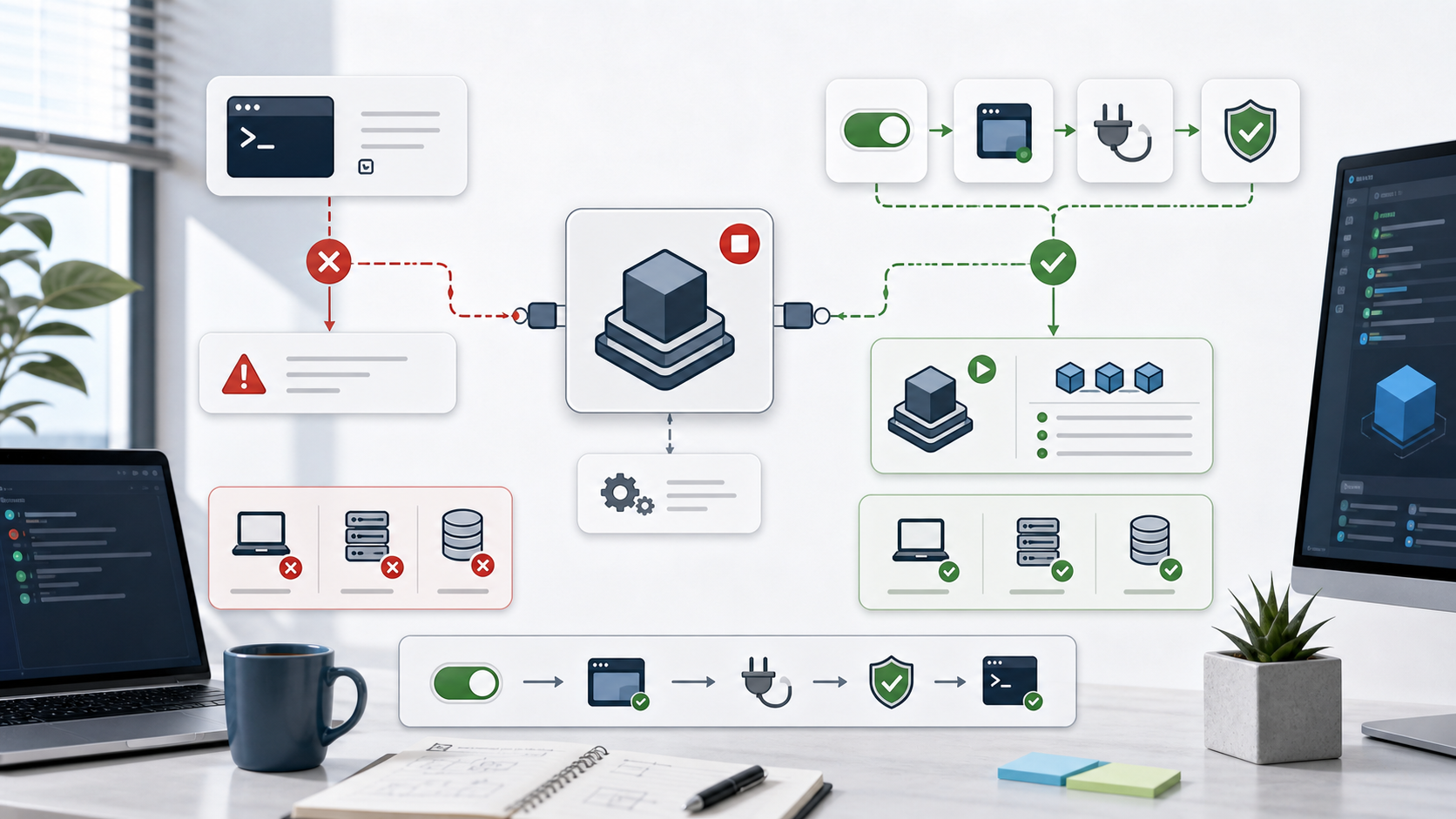
The image shows the client-engine relationship.
The docker command is only the client.
The daemon or engine must be running in the background for containers to start.
Common Error Messages
You may see:
Cannot connect to the Docker daemon at unix:///var/run/docker.sock.
Is the docker daemon running?
On Windows or Docker Desktop, the wording can vary, but the meaning is similar: the CLI cannot reach the engine.
Try:
docker version
If the client section appears but the server section fails, the CLI is installed but the daemon is unavailable.
1. Start Docker Desktop on Windows or macOS
If you use Docker Desktop, make sure the application is actually running. Opening a terminal is not enough.
Steps:
- Start Docker Desktop.
- Wait until the engine status is running.
- Open a new terminal.
- Run:
docker version
docker info
If Docker Desktop is stuck starting, use its troubleshoot menu or restart the app. Also check whether virtualization or WSL integration is enabled on Windows.
2. Start the Docker Service on Linux
On many Linux systems, the daemon is managed by systemd.
Check status:
sudo systemctl status docker
Start it:
sudo systemctl start docker
Enable it at boot:
sudo systemctl enable docker
Then verify:
docker info
If the service fails to start, inspect logs:
sudo journalctl -u docker --no-pager -n 100
The logs may point to a bad daemon configuration, storage driver issue, missing dependency, or port conflict.
3. Check Permissions on Linux
If Docker works with sudo but fails without it, the daemon is running but your user cannot access the Docker socket.
Test:
sudo docker info
docker info
If only the sudo command works, add your user to the Docker group if that matches your security policy:
sudo usermod -aG docker $USER
Then sign out and sign back in. Do not assume a new terminal is enough. Group membership is usually applied at login.
Security note: membership in the Docker group is powerful. Only add trusted users.
4. Check the Docker Context
Docker can target different contexts. If the current context points to a remote or unavailable engine, local commands can fail.
List contexts:
docker context ls
Use the default local context:
docker context use default
Then retry:
docker ps
This is especially useful if you recently used a remote Docker host, cloud context, or development container setup.
5. Check Environment Variables
The DOCKER_HOST environment variable can override where the client tries to connect.
Check it:
echo $DOCKER_HOST
On PowerShell:
echo $env:DOCKER_HOST
If it points to an old or unavailable daemon, remove it for the current shell and try again.
PowerShell:
Remove-Item Env:DOCKER_HOST
Bash:
unset DOCKER_HOST
6. Verify with a Small Container
After the daemon is running, test with:
docker run hello-world
If image pulling works and the test container exits successfully, the client and daemon can communicate.
For an existing project, then run:
docker compose version
docker compose up
If Docker works but Compose fails, the problem may be the Compose file, image build, port mapping, or environment variables, not the daemon.
Common Mistakes
The first mistake is reinstalling Docker before checking whether the engine is simply stopped. Start the service first.
The second mistake is ignoring the difference between client and server.
docker --version only proves the CLI exists.
It does not prove the daemon is running.
The third mistake is using sudo forever without understanding permissions.
It may work, but it hides the user/socket problem.
The fourth mistake is forgetting Docker context or DOCKER_HOST.
The client may be trying to connect somewhere other than your local machine.
Professional Depth Check
For Docker Daemon Not Running: How to Fix Cannot Connect to the Docker Daemon, the practical standard is not whether the reader can repeat one instruction once. Treat the topic as a reproducible debugging procedure: verify runtime environment, exact error boundary, minimal reproduction, and rollback path before drawing a conclusion. The result should be written as a small decision record, because future readers need to know which fact was observed, which assumption was used, and which condition would change the answer.
Evidence That Makes the Guidance Reliable
Use objective evidence before changing a workflow. Good evidence includes full command output, version numbers, changed files, and expected versus actual behavior. If two pieces of evidence conflict, keep the conflict visible instead of smoothing it over. For example, a successful quick fix is still weak evidence if the same input, account, dependency, or device state has not been tested again. A durable article should help the reader distinguish a confirmed fix from a plausible fix.
Related Reading
- GitHub Actions Build Failed
- GitHub Pages Jekyll Build Failed
- Docker: Start the daemon
- Docker: Linux post-installation steps
Final Checklist
[ ] Docker Desktop or Docker service is running.
[ ] `docker version` shows both client and server.
[ ] Linux user has permission to access the Docker socket.
[ ] Docker context points to the expected engine.
[ ] `DOCKER_HOST` is not pointing to a stale daemon.
[ ] `docker run hello-world` works.
Fix the daemon connection first. Only debug Dockerfiles, Compose files, and port mappings after the client can talk to the engine.
FAQ
When should I use this guide?
Use it when you can reproduce the error and need a practical order for checking commands, versions, paths, permissions, and logs.
What should beginners verify first?
Start with the exact error message, the command you ran, the operating system, and the tool version. These details usually narrow the cause faster than changing many settings at once.
Which keywords should I search next?
Search for “Docker Daemon Not Running: How to Fix Cannot Connect to the Docker Daemon” together with the exact error text, version, operating system, and tool name used in your environment.


Leave a comment