Problem
GitHub Pages fails to publish a Jekyll site:
Pages build and deployment failed
or:
Error: Process completed with exit code 1
The message may mention _config.yml, front matter, Sass, an include file, a plugin, or a post date.
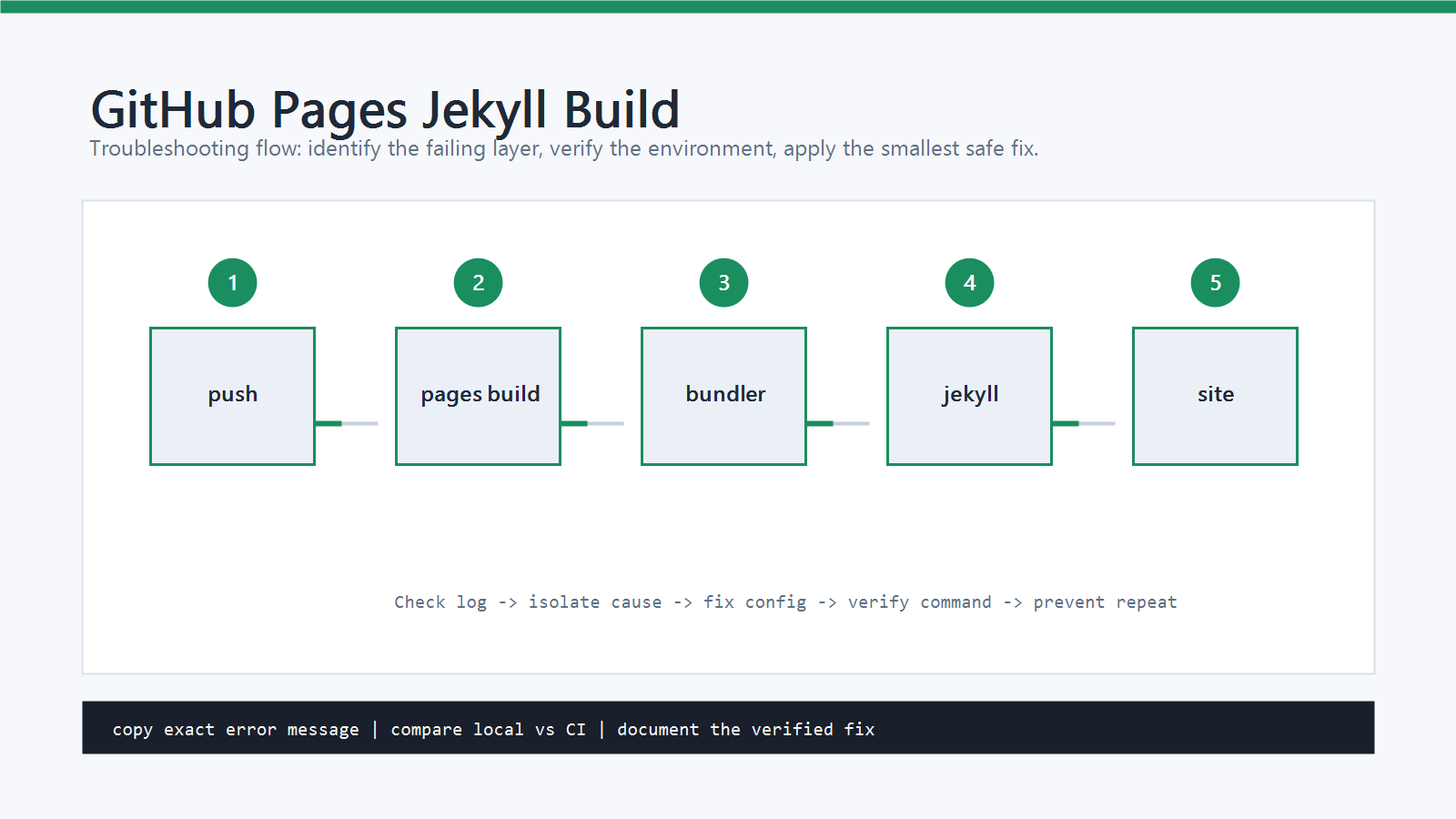
The fastest fix is to read the Pages workflow log and reproduce the Jekyll build locally.
Cause
Common causes include:
_config.ymlhas invalid YAML.- A post filename or front matter date is invalid.
- A file uses invalid UTF-8 encoding.
- A Liquid tag is not closed.
- An include references a missing file in
_includes. - Sass or SCSS syntax is invalid.
- The site uses a plugin that GitHub Pages does not support in that build mode.
- The configured publishing source is wrong.
- The local Ruby/Bundler environment differs from GitHub Pages.
GitHub recommends GitHub Actions for deploying and automating Pages sites. That also means the build log is usually available in the repository’s Actions tab.
Quick Diagnosis
Open the failed Pages build:
- Go to the repository on GitHub.
- Open the Actions tab.
- Open the failed Pages build and deployment run.
- Open the failed job.
- Expand the failed step.
- Read the first file path and line number mentioned in the log.
Then run a local build:
bundle install
bundle exec jekyll build --trace
If you do not use Bundler yet, install it and keep a Gemfile.
Bundler makes the Ruby gem set more predictable and reduces environment-related Jekyll errors.
Step-by-Step Fix
1. Fix _config.yml YAML Errors
If the log mentions _config.yml, check YAML syntax first.
Common mistakes:
title: My site: notes
Use quotes when a value contains a colon:
title: "My site: notes"
Also check:
- spaces instead of tabs
- a space after each
: - valid UTF-8 text
- correct indentation
- block scalars for long text
Example:
description: >
  A short description that can span multiple lines
  without breaking YAML parsing.
2. Fix Post Dates and Front Matter
Jekyll posts must use valid dates in filenames:
_posts/en/2026-05-23-example-post.md
The front matter date should also be valid:
date: 2026-05-23T20:00:00+09:00
Check for:
- impossible dates such as
2026-02-31 - malformed time zone offsets
- missing opening or closing
--- - tabs in front matter
- unquoted special characters in titles
If a title contains quotes, a block scalar is safer:
title: >
  How to Fix "Build failed" in Jekyll
3. Fix Missing Includes
If the log says a file does not exist in the includes directory, search for the include:
rg "{% include" .
Example problem:
{% include ad-banner.html %}
Jekyll expects:
_includes/ad-banner.html
Fix the filename, move the file into _includes, or remove the include if it is no longer used.
4. Fix Liquid Tag Errors
Liquid errors often mention tags not being closed or terminated.
Wrong:
{% if page.title %}
  {{ page.title }
{% endif %}
Right:
{% if page.title %}
  {{ page.title }}
{% endif %}
Check custom layouts and includes first because one broken layout can break many pages.
5. Fix Sass or SCSS Errors
If the log points to .scss or .sass, open the exact file and line.
Common mistakes:
- missing semicolon
- missing closing brace
- invalid variable name
- importing a file that does not exist
After fixing, run:
bundle exec jekyll build --trace
6. Check Plugins and GitHub Pages Mode
Some Jekyll plugins work locally but not in a restricted GitHub Pages build.
If you need custom plugins, use a GitHub Actions workflow that builds the site and deploys the generated output. If you publish directly from a branch with the default Pages build, keep plugins compatible with GitHub Pages.
Check Gemfile and _config.yml together:
plugins:
  - jekyll-feed
  - jekyll-sitemap
Remove plugins you do not use.
7. Confirm the Publishing Source
If the log says the docs folder is missing, check Pages settings:
Settings > Pages > Build and deployment
Confirm whether the site publishes from:
- a branch root
- a
/docsfolder - a custom GitHub Actions workflow
If you selected /docs, the docs folder must exist at the repository root on the selected branch.
How to Verify
Run locally:
bundle exec jekyll build --trace
Then push and check GitHub:
git add .
git commit -m "Fix GitHub Pages build"
git push
The fix is complete when:
- local Jekyll build succeeds
- the Pages workflow succeeds
- the site URL updates after deployment
- the changed page renders without broken assets or missing includes
GitHub Pages publishing may take several minutes after a successful build.
Common Mistakes
- Looking only at the final
exit code 1line. - Editing a post while the failure is actually in a shared layout.
- Forgetting the closing
---in front matter. - Using unsupported plugins in the default Pages build.
- Selecting
/docsas the source after deleting or moving thedocsfolder. - Assuming a local build is valid without using
bundle exec. - Ignoring case-sensitive file paths that fail on Linux runners.
Official References
- About Jekyll build errors for GitHub Pages sites
- Troubleshooting Jekyll build errors for GitHub Pages sites
- Creating a GitHub Pages site with Jekyll
Related Posts
- How to Fix GitHub Actions Build Failed
- How to Fix fatal: not a git repository Error
- How to Use Gitignore Correctly
FAQ
When should I use this guide?
Use it when you can reproduce the error and need a practical order for checking commands, versions, paths, permissions, and logs.
What should beginners verify first?
Start with the exact error message, the command you ran, the operating system, and the tool version. These details usually narrow the cause faster than changing many settings at once.
Which keywords should I search next?
Search for “Fix GitHub Pages Jekyll Build Failed” together with the exact error text, version, operating system, and tool name used in your environment.


Leave a comment