Quick Answer
Unsupported class file major version means a Java runtime or build tool is trying to read bytecode compiled for a newer Java version than it supports.
Use a newer JDK to run the project, or compile the project for an older target using Gradle, Maven, or javac --release.
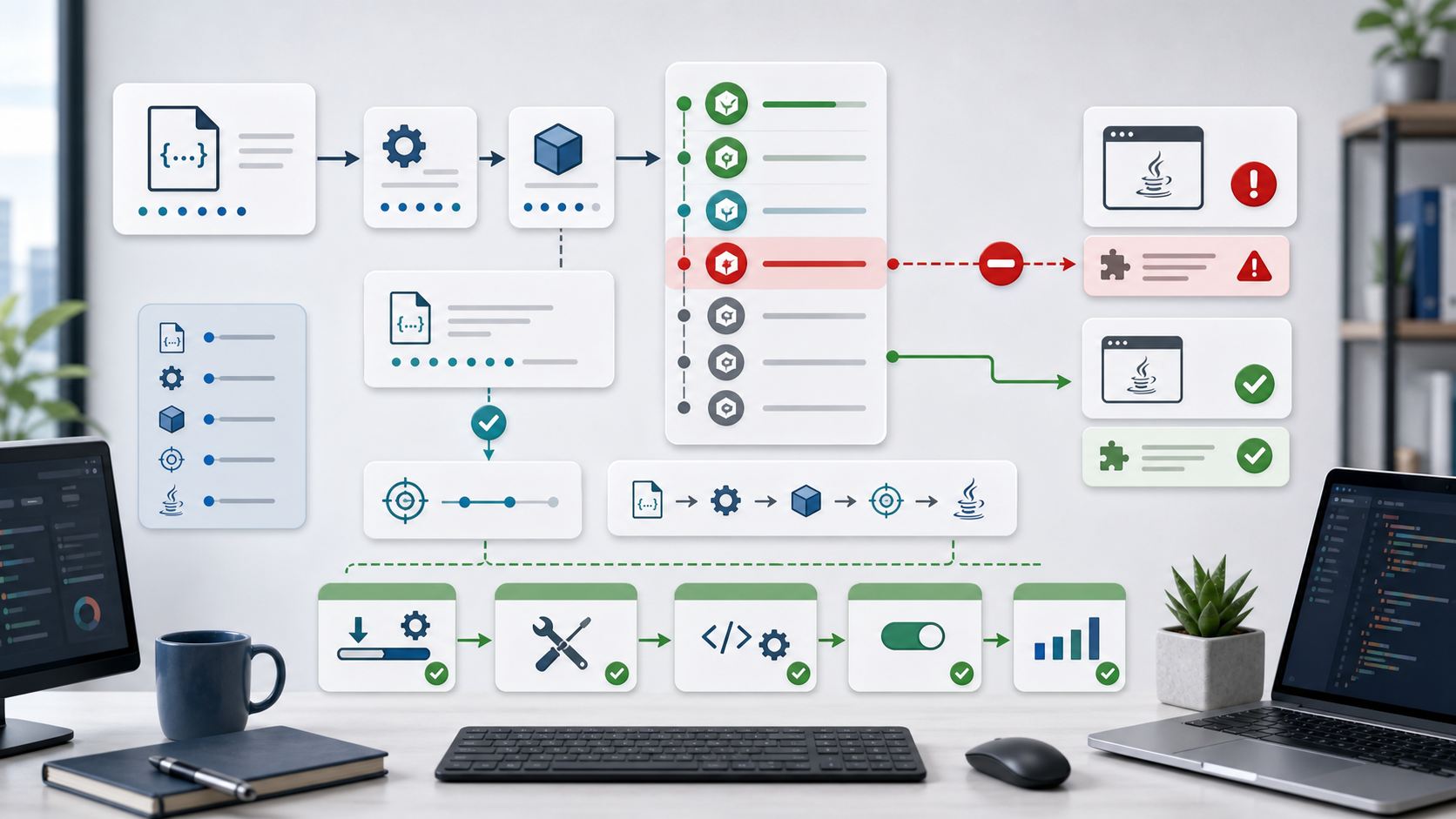
The image shows the mismatch. The compiler produced class files for a newer level, but the runtime or build tool is older. The fix is to align the build JDK, runtime JDK, and target release.
Typical Error
You may see:
java.lang.UnsupportedClassVersionError:
Unsupported class file major version 61
or:
Unsupported class file major version 65
The number identifies the class file version. For common versions:
| Major Version | Java Version |
|---|---|
| 52 | Java 8 |
| 55 | Java 11 |
| 61 | Java 17 |
| 65 | Java 21 |
So if Java 11 tries to run Java 17 bytecode, you can get major version 61.
1. Check the Java Runtime
Run:
java -version
Also check the compiler:
javac -version
If java and javac point to different versions, fix your JAVA_HOME and PATH.
On macOS or Linux:
echo $JAVA_HOME
which java
On Windows PowerShell:
echo $env:JAVA_HOME
where.exe java
The runtime used by your IDE may still be different from the terminal. Check the IDE project SDK too.
2. Check Gradle or Maven JVM
Gradle:
./gradlew --version
Maven:
mvn -version
These commands show the JVM used by the build tool. If the build tool runs on an old JDK, it may fail before your application even starts.
For Gradle projects, prefer Java toolchains:
java {
    toolchain {
        languageVersion = JavaLanguageVersion.of(17)
    }
}
For Maven, configure the compiler plugin:
<maven.compiler.release>17</maven.compiler.release>
Use the version your project actually supports.
3. Decide Whether to Upgrade Runtime or Lower Target
There are two valid fixes:
Option A: Run with a newer JDK.
Option B: Compile for an older Java target.
Choose Option A when the project requires newer Java features or framework versions. Choose Option B when the deployment environment is fixed to an older Java version.
Do not blindly lower the target.
If the source code uses newer APIs, compilation may pass in one place and fail at runtime elsewhere unless --release or a proper toolchain is used.
4. Check Dependency Bytecode
Sometimes your code targets Java 11, but a dependency was compiled for Java 17 or Java 21. In that case, the error may appear while loading a library.
Fix options:
- Upgrade the runtime JDK.
- Use an older compatible dependency version.
- Check the library’s release notes for minimum Java version.
- Align Spring Boot, Gradle, Maven, and plugin versions.
This is common after dependency upgrades. Read the first dependency mentioned in the stacktrace.
5. Clean After Changing JDK
After changing Java versions, clean the build output:
./gradlew clean build
or:
mvn clean test
Old compiled .class files may still exist in build/ or target/.
Cleaning ensures the project is compiled with the intended version.
Common Mistakes
The first mistake is changing only JAVA_HOME but not the IDE SDK.
The terminal and IDE may use different JDKs.
The second mistake is using global Gradle or Maven without checking its JVM. The project wrapper may use a different setup.
The third mistake is lowering the compiler target while dependencies still require a newer Java version.
The fourth mistake is fixing local Java but forgetting CI. Update CI images and setup actions too.
Professional Depth Check
For Unsupported Class File Major Version: How to Fix Java JDK Mismatch, the practical standard is not whether the reader can repeat one instruction once. Treat the topic as a reproducible debugging procedure: verify JDK version, build tool configuration, classpath or module path, and runtime stack trace before drawing a conclusion. The result should be written as a small decision record, because future readers need to know which fact was observed, which assumption was used, and which condition would change the answer.
Evidence That Makes the Guidance Reliable
Use objective evidence before changing a workflow. Good evidence includes java -version, javac -version, Maven or Gradle output, and the smallest failing class. If two pieces of evidence conflict, keep the conflict visible instead of smoothing it over. For example, a successful quick fix is still weak evidence if the same input, account, dependency, or device state has not been tested again. A durable article should help the reader distinguish a confirmed fix from a plausible fix.
Review Table
| Review Item | What To Confirm | Why It Matters |
|---|---|---|
| Scope | The exact case covered by this article | Prevents over-applying the advice |
| Baseline | The state before any change | Makes rollback and comparison possible |
| Change | The smallest action taken | Reduces hidden side effects |
| Result | The observed output after the change | Separates evidence from expectation |
| Recheck | When to revisit the conclusion | Keeps the post accurate over time |
Related Reading
- Gradle Build Failed
- Maven Dependency Not Found
- Oracle Java Virtual Machine Specification: ClassFile format
- Gradle Java toolchains
Final Checklist
[ ] `java -version` is the expected version.
[ ] `javac -version` matches the project target.
[ ] Gradle or Maven runs with the expected JDK.
[ ] The compiler target or release is configured.
[ ] Dependencies support the selected Java version.
[ ] CI and IDE settings match local settings.
This error is a version alignment problem. Once runtime, compiler, build tool, and dependencies agree, the class file major version error disappears.
FAQ
When should I use this guide?
Use it when you can reproduce the error and need a practical order for checking commands, versions, paths, permissions, and logs.
What should beginners verify first?
Start with the exact error message, the command you ran, the operating system, and the tool version. These details usually narrow the cause faster than changing many settings at once.
Which keywords should I search next?
Search for “Unsupported Class File Major Version: How to Fix Java JDK Mismatch” together with the exact error text, version, operating system, and tool name used in your environment.


Leave a comment