Quick Answer
Maven dependency not found means Maven could not resolve an artifact from the configured repositories or local cache.
Check the coordinates first: groupId, artifactId, and version.
Then check repository declarations, private repository credentials, mirror settings, and stale local cache entries.
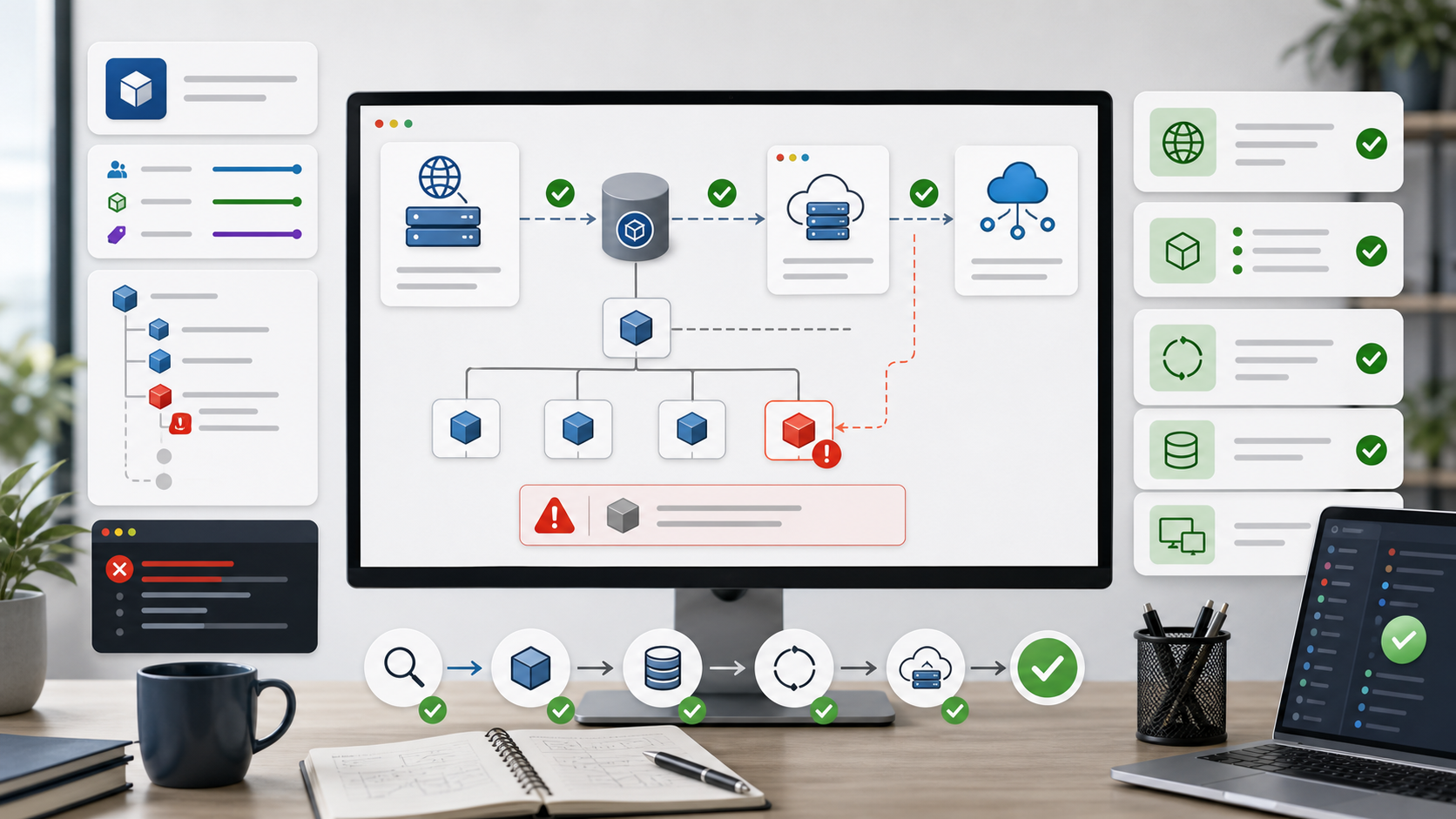
The image shows Maven’s lookup path. Maven searches for a dependency by coordinates. If the coordinate is wrong or the repository is unavailable, the dependency tree has a missing node.
Typical Error
You may see:
Could not resolve dependencies for project ...
Could not find artifact group:artifact:jar:version
Failure to find ... was cached in the local repository
The key question is:
Is the dependency name wrong, or is Maven looking in the wrong place?
Those two cases need different fixes.
1. Check Dependency Coordinates
A Maven dependency has three core coordinates:
<dependency>
  <groupId>com.example</groupId>
  <artifactId>example-library</artifactId>
  <version>1.2.3</version>
</dependency>
Check for:
- Typo in
groupId - Typo in
artifactId - Version that does not exist
- Snapshot version used without snapshot repository
- Wrong packaging or classifier
Search the artifact in Maven Central or your internal repository browser. Do not assume the version exists because it appears in a blog post or old issue.
2. Confirm the Repository
Maven Central is available by default, but private artifacts need a repository declaration.
Example:
<repositories>
  <repository>
    <id>company-releases</id>
    <url>https://repo.example.com/releases</url>
  </repository>
</repositories>
For plugins, use pluginRepositories, not only repositories.
Dependencies and build plugins are resolved through different repository sections.
If the dependency is internal, ask:
- Is the repository URL correct?
- Is the artifact published there?
- Does the repository host releases, snapshots, or both?
- Does the build run behind a proxy or mirror?
3. Check Private Repository Credentials
Credentials usually belong in ~/.m2/settings.xml, not in pom.xml.
Example:
<servers>
  <server>
    <id>company-releases</id>
    <username>...</username>
    <password>...</password>
  </server>
</servers>
The server id must match the repository id in the pom.xml or parent configuration.
If the ids do not match, Maven will not use the credentials for that repository.
Never commit real repository passwords or tokens into source control.
4. Clear a Cached Failed Resolution
Maven caches failed lookup attempts. That is why the error may say the failure was cached.
Force Maven to update snapshots and metadata:
mvn -U clean package
If one dependency is stuck, remove only that artifact directory from your local repository:
~/.m2/repository/com/example/example-library/
Avoid deleting all of ~/.m2/repository as the first step.
It can take a long time to rebuild and may hide the actual issue.
5. Inspect the Dependency Tree
Run:
mvn dependency:tree
If the dependency is transitive, the tree can show which library requested it.
For more detail:
mvn dependency:tree -Dverbose
If two versions conflict, use dependency management to pin the intended version. If a transitive dependency is wrong, exclude it from the dependency that brings it in and add the correct one explicitly.
6. Check Mirrors and Proxies
Corporate environments often use a Maven mirror.
A mirror in settings.xml can redirect all repository requests.
Look for:
<mirrors>
  <mirror>
    <mirrorOf>*</mirrorOf>
    <url>...</url>
  </mirror>
</mirrors>
If the mirror is down, stale, or missing the artifact, Maven may fail even though the artifact exists in Maven Central. In that case, fix the mirror or ask the repository admin to sync the artifact.
Proxy settings can also block downloads.
Check settings.xml and your network environment.
Common Mistakes
The first mistake is changing code before verifying the artifact exists. Most dependency-not-found errors are coordinate or repository problems.
The second mistake is adding a repository in the wrong section.
Build plugins need pluginRepositories.
The third mistake is committing credentials into pom.xml.
Use settings.xml or secure CI secrets.
The fourth mistake is deleting the entire Maven cache immediately.
Use mvn -U or remove the specific artifact first.
Professional Depth Check
For Maven Dependency Not Found: How to Fix Could Not Resolve Artifact, the practical standard is not whether the reader can repeat one instruction once. Treat the topic as a reproducible debugging procedure: verify JDK version, build tool configuration, classpath or module path, and runtime stack trace before drawing a conclusion. The result should be written as a small decision record, because future readers need to know which fact was observed, which assumption was used, and which condition would change the answer.
Evidence That Makes the Guidance Reliable
Use objective evidence before changing a workflow. Good evidence includes java -version, javac -version, Maven or Gradle output, and the smallest failing class. If two pieces of evidence conflict, keep the conflict visible instead of smoothing it over. For example, a successful quick fix is still weak evidence if the same input, account, dependency, or device state has not been tested again. A durable article should help the reader distinguish a confirmed fix from a plausible fix.
Related Reading
- Gradle Build Failed
- Java Error: Cannot Find Symbol
- Maven: Introduction to repositories
- Maven: Dependency mechanism
Final Checklist
[ ] `groupId`, `artifactId`, and `version` are correct.
[ ] The artifact exists in Maven Central or the intended private repository.
[ ] Repository or plugin repository is declared in the right place.
[ ] Private repository credentials match the repository id.
[ ] `mvn -U` was tried for cached failures.
[ ] Mirrors and proxies are not blocking resolution.
[ ] `mvn dependency:tree` explains transitive dependency issues.
Maven dependency errors are easiest to fix when you treat them as lookup problems. Verify what Maven is looking for, then verify where Maven is allowed to look.
FAQ
When should I use this guide?
Use it when you can reproduce the error and need a practical order for checking commands, versions, paths, permissions, and logs.
What should beginners verify first?
Start with the exact error message, the command you ran, the operating system, and the tool version. These details usually narrow the cause faster than changing many settings at once.
Which keywords should I search next?
Search for “Maven Dependency Not Found: How to Fix Could Not Resolve Artifact” together with the exact error text, version, operating system, and tool name used in your environment.


Leave a comment