Quick Answer
If the Python interpreter is not showing in VS Code, first confirm the Python extension is installed and you opened a folder, not just a single file. Then create or locate the virtual environment, use Python: Select Interpreter, and choose the interpreter path manually if auto-detection misses it.
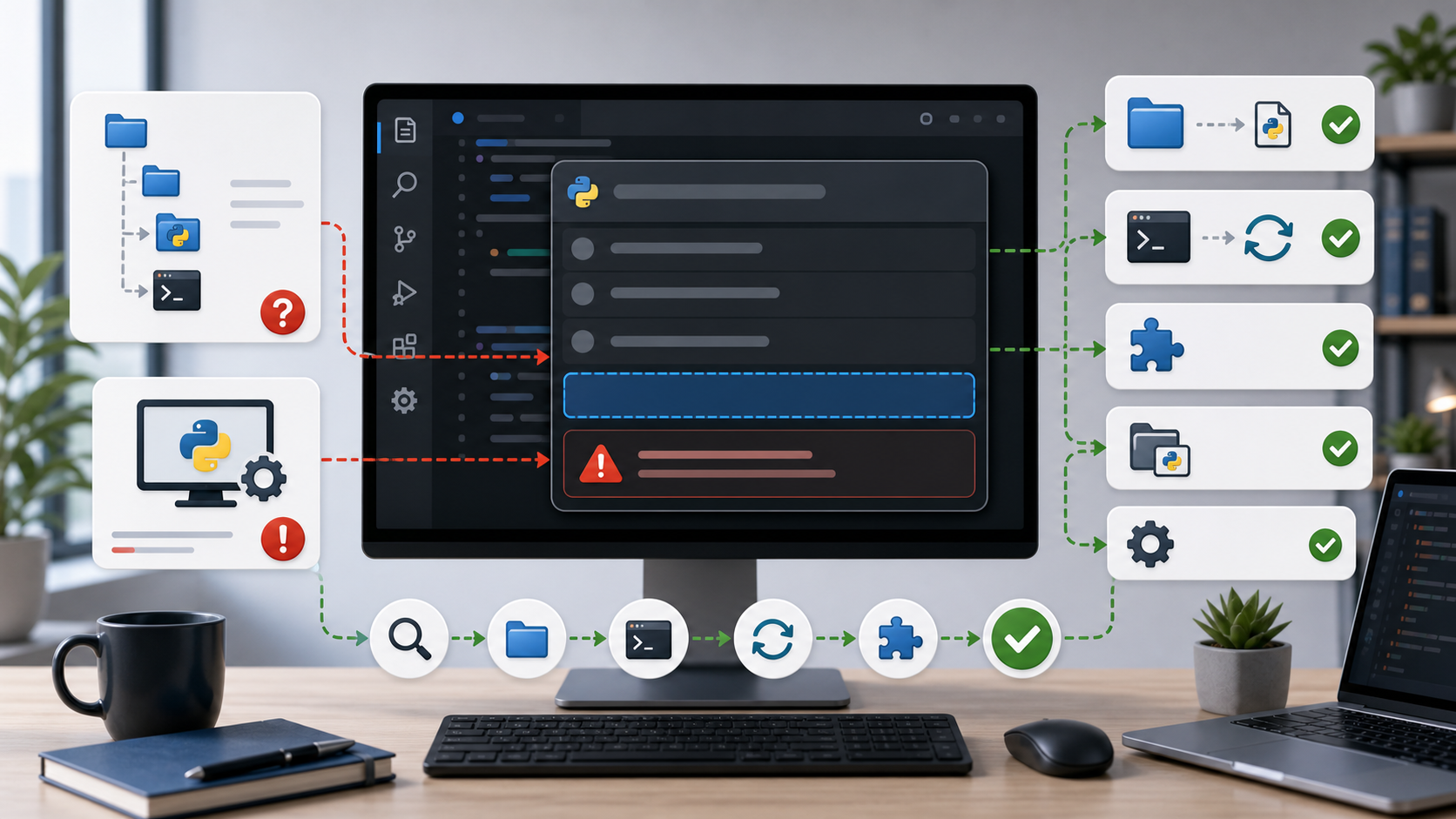
The image shows the common situation. The editor is open, but the expected environment is missing from the picker. The fix is to verify the extension, workspace, environment path, refresh state, and terminal.
1. Confirm the Python Extension
Open Extensions in VS Code and check that the Microsoft Python extension is installed and enabled. Then reload the window:
Developer: Reload Window
If the extension is disabled for the workspace, the interpreter picker may not behave as expected.
2. Open the Project Folder
VS Code detects environments better when a workspace folder is open. Use:
File > Open Folder
Do not only open one .py file.
Virtual environments are usually discovered relative to the workspace folder.
Good project shape:
my-project/
  .venv/
  src/
  pyproject.toml
If .venv is outside the workspace, auto-detection may miss it.
Manual selection can still work.
3. Create a Virtual Environment
From the project folder:
python -m venv .venv
Windows activation:
.\.venv\Scripts\Activate.ps1
macOS or Linux:
source .venv/bin/activate
Then reload VS Code and run:
Python: Select Interpreter
If .venv is inside the workspace, it usually appears in the list.
4. Select the Interpreter Manually
If the interpreter still does not appear, choose:
Python: Select Interpreter
Enter interpreter path
Common paths:
Windows:
.\.venv\Scripts\python.exe
macOS or Linux:
./.venv/bin/python
After selection, VS Code stores the interpreter choice for the workspace.
5. Check Terminal and VS Code Are Using the Same Python
In the VS Code terminal:
python --version
python -c "import sys; print(sys.executable)"
If the path does not match the selected interpreter, open a new terminal after selecting it. The old terminal may keep the previous environment.
Also check:
Python: Create Environment
Python: Select Interpreter
Python: Clear Workspace Interpreter Setting
These commands help reset a confused workspace.
6. Check Windows Execution Policy
On Windows, activation can fail because PowerShell blocks scripts. If activation fails, VS Code may still select the interpreter manually, but the terminal environment may not activate.
For the current user:
Set-ExecutionPolicy -Scope CurrentUser RemoteSigned
Use the least broad policy that works for your environment.
Common Mistakes
The first mistake is installing Python but not the VS Code Python extension.
The second mistake is opening a single file instead of the project folder.
The third mistake is creating .venv in a different directory than the workspace.
The fourth mistake is selecting an interpreter and then using an old terminal that was opened before the selection.
The fifth mistake is confusing global Python, Conda, and virtual environment Python.
Check sys.executable to know what is actually running.
Professional Depth Check
For VS Code Python Interpreter Not Showing: How to Find and Select the Right Environment, the practical standard is not whether the reader can repeat one instruction once. Treat the topic as a reproducible debugging procedure: verify interpreter path, virtual environment, package version, and input file or data boundary before drawing a conclusion. The result should be written as a small decision record, because future readers need to know which fact was observed, which assumption was used, and which condition would change the answer.
Evidence That Makes the Guidance Reliable
Use objective evidence before changing a workflow. Good evidence includes python --version, python -m pip show, the full traceback, and a minimal script. If two pieces of evidence conflict, keep the conflict visible instead of smoothing it over. For example, a successful quick fix is still weak evidence if the same input, account, dependency, or device state has not been tested again. A durable article should help the reader distinguish a confirmed fix from a plausible fix.
Review Table
| Review Item | What To Confirm | Why It Matters |
|---|---|---|
| Scope | The exact case covered by this article | Prevents over-applying the advice |
| Baseline | The state before any change | Makes rollback and comparison possible |
| Change | The smallest action taken | Reduces hidden side effects |
| Result | The observed output after the change | Separates evidence from expectation |
| Recheck | When to revisit the conclusion | Keeps the post accurate over time |
Edge Cases and Failure Modes
The main risks are fixing the symptom while leaving the root cause, and mixing unrelated changes into the same test. When the situation involves production data, personal information, money, health, legal rights, or security recovery, the conservative path is to stop and collect evidence before applying a broad fix. The same title can describe very different cases, so the reader should compare their environment with the assumptions in the post before copying commands or decisions.
Related Reading
- Python venv Not Activating
- Python Command Not Found on Windows
- VS Code: Python environments
- VS Code Python tutorial
Final Checklist
[ ] Python extension is installed and enabled.
[ ] A project folder is open.
[ ] `.venv` exists inside or near the workspace.
[ ] Interpreter path can be selected manually.
[ ] New terminal uses the selected Python.
[ ] `sys.executable` points to the expected environment.
When auto-detection fails, manual interpreter selection is the fastest reliable fix.
After that, verify with sys.executable, not only the status bar.
FAQ
When should I use this guide?
Use it when you can reproduce the error and need a practical order for checking commands, versions, paths, permissions, and logs.
What should beginners verify first?
Start with the exact error message, the command you ran, the operating system, and the tool version. These details usually narrow the cause faster than changing many settings at once.
Which keywords should I search next?
Search for “VS Code Python Interpreter Not Showing: How to Find and Select the Right Environment” together with the exact error text, version, operating system, and tool name used in your environment.


Leave a comment