Problem
You open PowerShell or Command Prompt on Windows and run:
python --version
But Windows returns an error such as:
python is not recognized as an internal or external command
or:
Python was not found; run without arguments to install from the Microsoft Store
This usually means Windows cannot find the python.exe command through PATH, or the Microsoft Store App Execution Alias is intercepting the command.
Cause
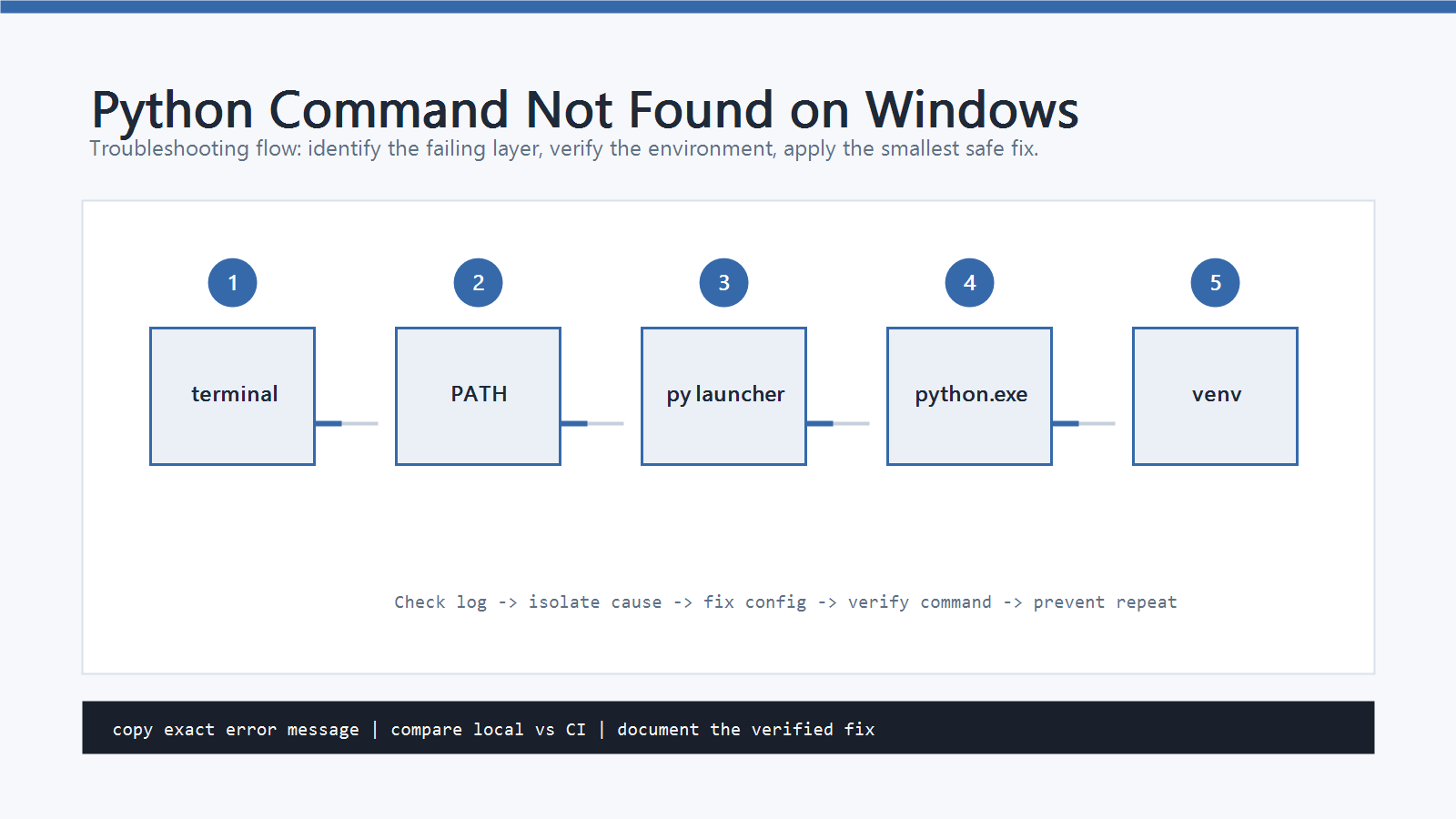
python command not found windows problems usually come from one of these causes.
- Python is not installed.
- Python is installed, but its install folder is not in
PATH. - The Microsoft Store App Execution Alias is taking over
python. - The terminal was not restarted after installing Python.
- Multiple Python versions are installed and Windows finds the wrong one first.
- You installed Python, but only the
pylauncher works. pipis being used before confirming which Python is active.
The fastest path is to check whether the py launcher can find Python.
Quick Fix
Run these commands in PowerShell:
py --version
py -0p
where python
where py
If py --version works, Python is installed and the Python launcher can find it.
You can use:
py script.py
py -m pip --version
py -m pip install package-name
If py works but python does not, the issue is usually PATH or the App Execution Alias.
Step-by-Step Fix
1. Check Whether Python Is Installed
Run:
py --version
If this prints a Python version, Python is available through the launcher.
Then list all Python versions that the launcher can see:
py -0p
Example output:
 -V:3.12 *        C:\Users\you\AppData\Local\Programs\Python\Python312\python.exe
 -V:3.11          C:\Users\you\AppData\Local\Programs\Python\Python311\python.exe
If py is also not found, install Python from the official Python website or your package manager, then open a new terminal.
2. Check Which python Command Windows Finds
Run:
where python
You may see a real Python path, such as:
C:\Users\you\AppData\Local\Programs\Python\Python312\python.exe
Or you may see the WindowsApps alias:
C:\Users\you\AppData\Local\Microsoft\WindowsApps\python.exe
If the command points to WindowsApps, Windows may be using the Microsoft Store alias instead of your real Python installation.
3. Turn Off the Microsoft Store App Execution Alias
If Windows opens the Microsoft Store or shows “Python was not found”, turn off the aliases.
Steps:
- Open Windows Settings.
- Go to
Apps. - Open
Advanced app settings. - Open
App execution aliases. - Turn off
python.exe. - Turn off
python3.exe. - Close and reopen PowerShell or Command Prompt.
Then run:
python --version
where python
If python still does not work, add Python to PATH.
4. Add Python to PATH
Find your Python install path with:
py -0p
For a per-user Python install, the paths often look like:
C:\Users\you\AppData\Local\Programs\Python\Python312\
C:\Users\you\AppData\Local\Programs\Python\Python312\Scripts\
Add both paths to the user PATH.
Steps:
- Open Windows Search.
- Search for
Environment Variables. - Open
Edit environment variables for your account. - Select
Path. - Click
Edit. - Add the Python folder.
- Add the
Scriptsfolder. - Save the changes.
- Open a new terminal.
Do not test in the old terminal window. Environment variable changes apply to new terminal sessions.
5. Prefer py When Multiple Python Versions Are Installed
If you have more than one Python version, the py launcher can be clearer than python.
Examples:
py -3.12 --version
py -3.12 -m pip --version
py -3.12 script.py
This avoids guessing which python.exe appears first in PATH.
6. Check pip After Python Works
After python or py works, check pip.
py -m pip --version
python -m pip --version
If py -m pip works but python -m pip does not, keep using py -m pip or fix the python command path.
Do not start with plain pip.
First confirm which Python interpreter you are using.
How to Verify
Run:
py --version
py -0p
where python
python --version
py -m pip --version
A healthy setup should show:
pycan list at least one Python version.where pythonpoints to a real Python install, not onlyWindowsApps.python --versionprints the expected version.py -m pip --versionworks.
Then test a simple command:
py -c "import sys; print(sys.executable)"
The output should point to the Python installation you intend to use.
Common Mistakes
- Editing
PATHand testing in the same old terminal. - Leaving the Microsoft Store
python.exealias enabled. - Installing Python but not checking the “Add python.exe to PATH” option.
- Using
pipbefore confirmingpy -m pip --version. - Having multiple Python versions and assuming
pythonpoints to the newest one. - Adding only the Python folder to
PATHbut not theScriptsfolder.
Professional Depth Check
For Python Command Not Found on Windows: How to Fix It, the practical standard is not whether the reader can repeat one instruction once. Treat the topic as a reproducible debugging procedure: verify interpreter path, virtual environment, package version, and input file or data boundary before drawing a conclusion. The result should be written as a small decision record, because future readers need to know which fact was observed, which assumption was used, and which condition would change the answer.
Evidence That Makes the Guidance Reliable
Use objective evidence before changing a workflow. Good evidence includes python --version, python -m pip show, the full traceback, and a minimal script. If two pieces of evidence conflict, keep the conflict visible instead of smoothing it over. For example, a successful quick fix is still weak evidence if the same input, account, dependency, or device state has not been tested again. A durable article should help the reader distinguish a confirmed fix from a plausible fix.
Related Posts
- How to Fix pip install Failed in Python
- How to Fix No module named pip in Python
- Python venv Not Activating: How to Fix It
FAQ
When should I use this guide?
Use it when you can reproduce the error and need a practical order for checking commands, versions, paths, permissions, and logs.
What should beginners verify first?
Start with the exact error message, the command you ran, the operating system, and the tool version. These details usually narrow the cause faster than changing many settings at once.
Which keywords should I search next?
Search for “Python Command Not Found on Windows: How to Fix It” together with the exact error text, version, operating system, and tool name used in your environment.


Leave a comment