Problem
You created a Python virtual environment with python -m venv .venv, but it does not seem to activate.
The terminal prompt may not change, pip install may still install globally, or VS Code may keep using a different Python interpreter.
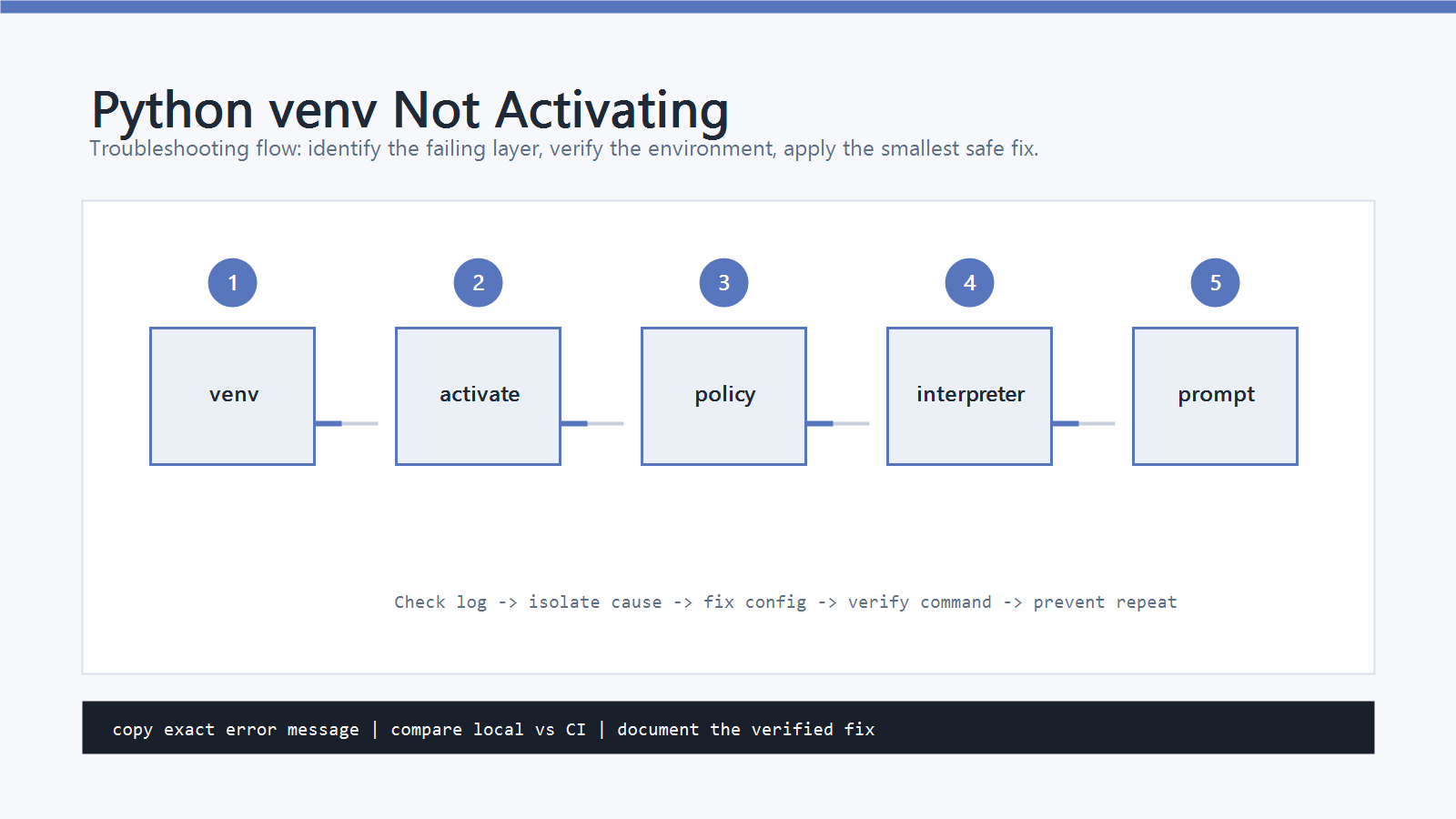
The confusing part is that prompt changes are only a visual clue.
The real test is whether python and pip now point inside the virtual environment.
Cause
venv activation usually fails for one of these reasons.
- You used the activation command for the wrong shell.
- PowerShell blocks
Activate.ps1because of the execution policy. - You are running the command from the wrong project directory.
- The
.venvfolder was deleted or created somewhere else. - VS Code is using a different selected interpreter.
- You are mixing
condaandvenvin the same terminal. - The prompt did not change, but the environment actually activated.
The fix is to use the correct activation script for your shell, then verify the Python executable path.
Quick Fix
Use the command that matches your shell.
Windows PowerShell
.\.venv\Scripts\Activate.ps1
Windows Command Prompt
.venv\Scripts\activate.bat
Git Bash on Windows
source .venv/Scripts/activate
macOS and Linux
source .venv/bin/activate
Then verify:
python -c "import sys; print(sys.executable)"
python -m pip --version
If the path includes .venv, the environment is active even if your prompt did not change.
Step-by-Step Fix
1. Confirm the venv Folder Exists
From the project root, check that .venv exists.
Windows PowerShell:
Get-ChildItem .venv
macOS and Linux:
ls .venv
If the folder does not exist, create it:
python -m venv .venv
If your machine has multiple Python versions, create the environment with the exact interpreter you want.
Windows:
py -3.12 -m venv .venv
macOS and Linux:
python3.12 -m venv .venv
2. Use the Correct Activation Script
Each shell has a different activation file.
| Shell | Activation command |
|---|---|
| PowerShell | .\.venv\Scripts\Activate.ps1 |
| Command Prompt | .venv\Scripts\activate.bat |
| Git Bash on Windows | source .venv/Scripts/activate |
| macOS/Linux shell | source .venv/bin/activate |
If you copy the macOS/Linux command into PowerShell, it will fail. If you copy the PowerShell command into Git Bash, it will also fail.
3. Fix PowerShell Execution Policy
If PowerShell shows a message like “running scripts is disabled on this system”, change the policy for the current user.
Set-ExecutionPolicy -Scope CurrentUser RemoteSigned
Close the terminal, open a new PowerShell window, and activate again:
.\.venv\Scripts\Activate.ps1
Use CurrentUser, not LocalMachine, unless you intentionally want a system-wide policy change.
4. Verify the Active Python
Do not rely only on the prompt. Run:
python -c "import sys; print(sys.executable)"
Expected examples:
C:\project\.venv\Scripts\python.exe
/home/user/project/.venv/bin/python
Then check pip:
python -m pip --version
The output should also point inside .venv.
5. Fix VS Code Interpreter Mismatch
If the terminal activates correctly but VS Code still runs another Python, select the interpreter manually.
In VS Code:
- Open the Command Palette.
- Run
Python: Select Interpreter. - Choose the interpreter inside
.venv.
The selected path should look like:
.venv\Scripts\python.exe
or:
.venv/bin/python
After selecting it, open a new terminal in VS Code and verify again:
python -c "import sys; print(sys.executable)"
6. Avoid Mixing conda and venv
If your prompt shows both a Conda environment and .venv, you may be mixing environment managers.
For a simple project, deactivate Conda first:
conda deactivate
Then activate .venv again.
Use one environment manager per project unless you have a specific reason to combine them.
How to Verify
A working virtual environment should pass these checks.
python -c "import sys; print(sys.executable)"
python -m pip --version
python -c "import site; print(site.getsitepackages())"
The output should reference .venv.
Then install a small package and confirm it is installed inside the environment:
python -m pip install requests
python -m pip show requests
If pip show points to .venv, activation and installation are working.
Common Mistakes
- Using
source .venv/bin/activatein PowerShell. - Running
Activate.ps1from a directory that does not contain.venv. - Assuming activation failed only because the prompt did not change.
- Installing packages with plain
pipafter activating with the wrong Python. - Selecting the wrong interpreter in VS Code.
- Mixing Conda and
venvwithout checkingsys.executable.
Professional Depth Check
For Python venv Not Activating: How to Fix It, the practical standard is not whether the reader can repeat one instruction once. Treat the topic as a reproducible debugging procedure: verify interpreter path, virtual environment, package version, and input file or data boundary before drawing a conclusion. The result should be written as a small decision record, because future readers need to know which fact was observed, which assumption was used, and which condition would change the answer.
Evidence That Makes the Guidance Reliable
Use objective evidence before changing a workflow. Good evidence includes python --version, python -m pip show, the full traceback, and a minimal script. If two pieces of evidence conflict, keep the conflict visible instead of smoothing it over. For example, a successful quick fix is still weak evidence if the same input, account, dependency, or device state has not been tested again. A durable article should help the reader distinguish a confirmed fix from a plausible fix.
Related Posts
- How to Fix pip install Failed in Python
- How to Fix No module named pip in Python
- How to Fix ModuleNotFoundError in Python
FAQ
When should I use this guide?
Use it when you can reproduce the error and need a practical order for checking commands, versions, paths, permissions, and logs.
What should beginners verify first?
Start with the exact error message, the command you ran, the operating system, and the tool version. These details usually narrow the cause faster than changing many settings at once.
Which keywords should I search next?
Search for “Python venv Not Activating: How to Fix It” together with the exact error text, version, operating system, and tool name used in your environment.


Leave a comment