Problem
You run npm install, but npm stops with an error like this:
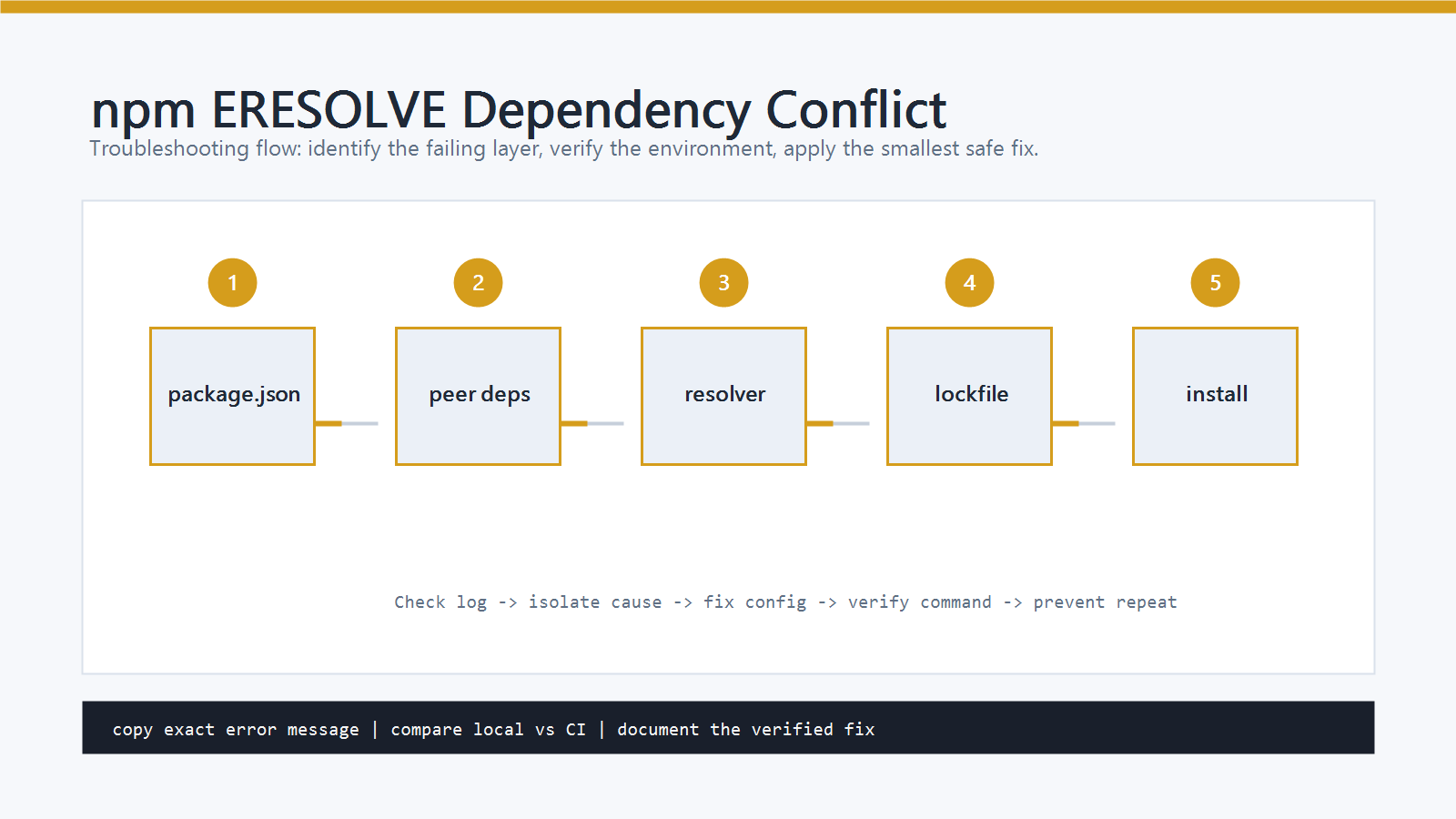
npm ERR! ERESOLVE unable to resolve dependency tree
You may also see lines such as:
npm ERR! Found: react@18.2.0
npm ERR! Could not resolve dependency:
npm ERR! peer react@"^17.0.0" from some-package
npm ERR ERESOLVE means npm found dependency requirements that cannot all be true at the same time.
This is common in React, Angular, Vite, ESLint, TypeScript, and testing-library projects where plugins depend on specific major versions.
Cause
The most common cause is a peer dependency conflict.
A package may say, “I work with React 17”, while your project uses React 18. Another package may require a different TypeScript, ESLint, or framework version.
Other common causes include:
- The lockfile was created with different package versions.
package.jsonwas edited without refreshingpackage-lock.json.- A plugin is too old for the framework version.
- npm version changed and now enforces peer dependencies more strictly.
- A package was installed with
--legacy-peer-depsbefore, hiding the conflict.
The safest fix is to identify the conflicting package and align versions.
Quick Diagnosis
Run these commands first:
node -v
npm -v
npm explain package-name
Replace package-name with the package mentioned in the error output.
If npm says a peer dependency is wrong, inspect the package:
npm view package-name peerDependencies
npm view package-name version
This tells you which versions the package expects.
Step-by-Step Fix
1. Read the First ERESOLVE Block
Do not only search for the last line.
The useful part is usually near the first Found: and Could not resolve dependency: block.
Look for:
- The package currently installed.
- The package that requires a different version.
- The peer dependency range.
Example:
Found: react@18.2.0
Could not resolve dependency:
peer react@"^17.0.0" from old-component-library
This means old-component-library does not declare compatibility with React 18.
2. Align Package Versions
Choose one of these fixes:
- Upgrade the package that has the old peer dependency.
- Downgrade the framework package if the project must stay compatible.
- Replace the incompatible package.
- Use a package version that matches your framework major version.
For example:
npm install old-component-library@latest
or install a specific compatible version:
npm install old-component-library@2.4.0
After changing versions, run:
npm install
3. Refresh node_modules and package-lock.json
If versions are now aligned but npm still fails, refresh the install state.
macOS and Linux:
rm -rf node_modules package-lock.json
npm install
Windows PowerShell:
Remove-Item -Recurse -Force node_modules
Remove-Item -Force package-lock.json
npm install
Keep node_modules cleanup and lockfile regeneration together.
Do not delete the lockfile repeatedly without understanding why the dependency tree changed.
4. Check npm Version Differences
Different npm versions can resolve peer dependencies differently.
Check:
npm -v
If this project is shared with a team or CI, use the same Node and npm versions everywhere.
If the project has .nvmrc, packageManager, Volta, or a CI Node setup, follow that version.
5. Use –legacy-peer-deps Only as a Temporary Escape Hatch
You may see advice like:
npm install --legacy-peer-deps
This can be useful when:
- You need to restore an old project quickly.
- You are migrating dependencies in stages.
- The package works at runtime but has outdated peer dependency metadata.
But it also hides the conflict. If the packages are truly incompatible, your app may fail during build or runtime.
Use it as a temporary workaround, then plan a real dependency update.
6. Avoid –force as the Default Fix
npm install --force is more aggressive.
It tells npm to accept a potentially broken dependency tree.
Use it only when you understand the consequences and have tests or a build step to catch breakage.
For normal project maintenance, version alignment is the better fix.
How to Verify
After fixing the dependency tree, run:
npm install
npm ls
npm run build
If the project has tests, run them:
npm test
For frontend projects, also start the dev server:
npm run dev
The fix is not complete just because npm install passes.
The app should still build and run with the resolved versions.
Common Mistakes
- Running
npm install --legacy-peer-depswithout reading the conflict. - Deleting
node_modulesbut keeping an outdated lockfile. - Deleting
package-lock.jsonwithout committing the regenerated lockfile. - Mixing npm, yarn, and pnpm lockfiles in the same project.
- Upgrading React, Angular, Vite, ESLint, or TypeScript without upgrading related plugins.
- Assuming the newest version of every package is always compatible.
Professional Depth Check
For How to Fix npm ERR ERESOLVE, the practical standard is not whether the reader can repeat one instruction once. Treat the topic as a reproducible debugging procedure: verify browser or Node version, bundler setting, async boundary, and DOM or API state before drawing a conclusion. The result should be written as a small decision record, because future readers need to know which fact was observed, which assumption was used, and which condition would change the answer.
Evidence That Makes the Guidance Reliable
Use objective evidence before changing a workflow. Good evidence includes console stack trace, node --version, network tab output, and a minimal reproduction. If two pieces of evidence conflict, keep the conflict visible instead of smoothing it over. For example, a successful quick fix is still weak evidence if the same input, account, dependency, or device state has not been tested again. A durable article should help the reader distinguish a confirmed fix from a plausible fix.
Related Posts
- How to Fix JavaScript Failed to Fetch Error
- JavaScript var vs let vs const: What’s the Difference?
- Promise.all vs Promise.race in JavaScript
FAQ
When should I use this guide?
Use it when you can reproduce the error and need a practical order for checking commands, versions, paths, permissions, and logs.
What should beginners verify first?
Start with the exact error message, the command you ran, the operating system, and the tool version. These details usually narrow the cause faster than changing many settings at once.
Which keywords should I search next?
Search for “How to Fix npm ERR ERESOLVE” together with the exact error text, version, operating system, and tool name used in your environment.


Leave a comment