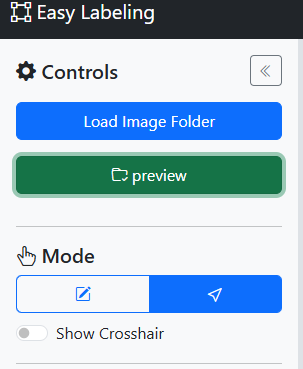
Easy Labeling Project Page: https://mouseball54.github.io/easy_labeling/
Hello! Starting with this post, I will explain how to use Easy Labeling, a local annotation tool that currently supports Detection for YOLO boxes and Segmentation for brush-based masks.
For this first session, we will learn how to load image and label files and how to use class description files.
1. Loading Images
1.1 Recommended Environment
We recommend using the following environment:
Operating System: Windows 10 or higher, macOS 10.14 or higher
Browser: Desktop Chrome or Edge recommended because local folder read/write uses the File System Access API
Screen Resolution: 1280×720 or higher
1.2 Accessing the Website
Access the Easy Labeling project page (https://mouseball54.github.io/easy_labeling/) in your web browser.
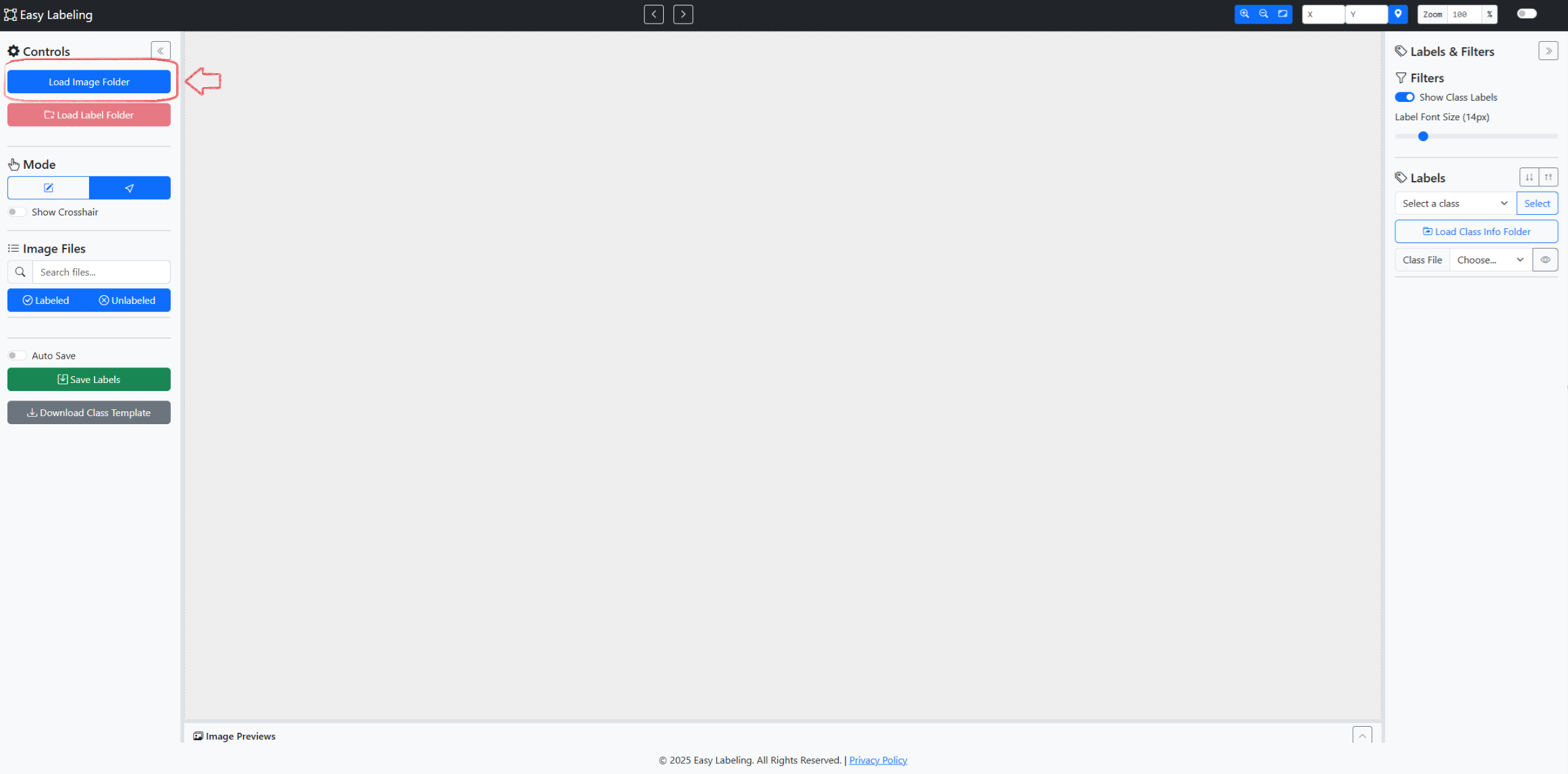
Load Image Folder button in the top left corner.1.3 Selecting the Image Folder
- Click the
Load Image Folderbutton to select the folder where your images for labeling are stored.
(Note) Easy Labeling is a web program that runs directly in your browser without a server. Therefore, you can use it safely without worrying about your images or label data being transmitted or leaked externally.
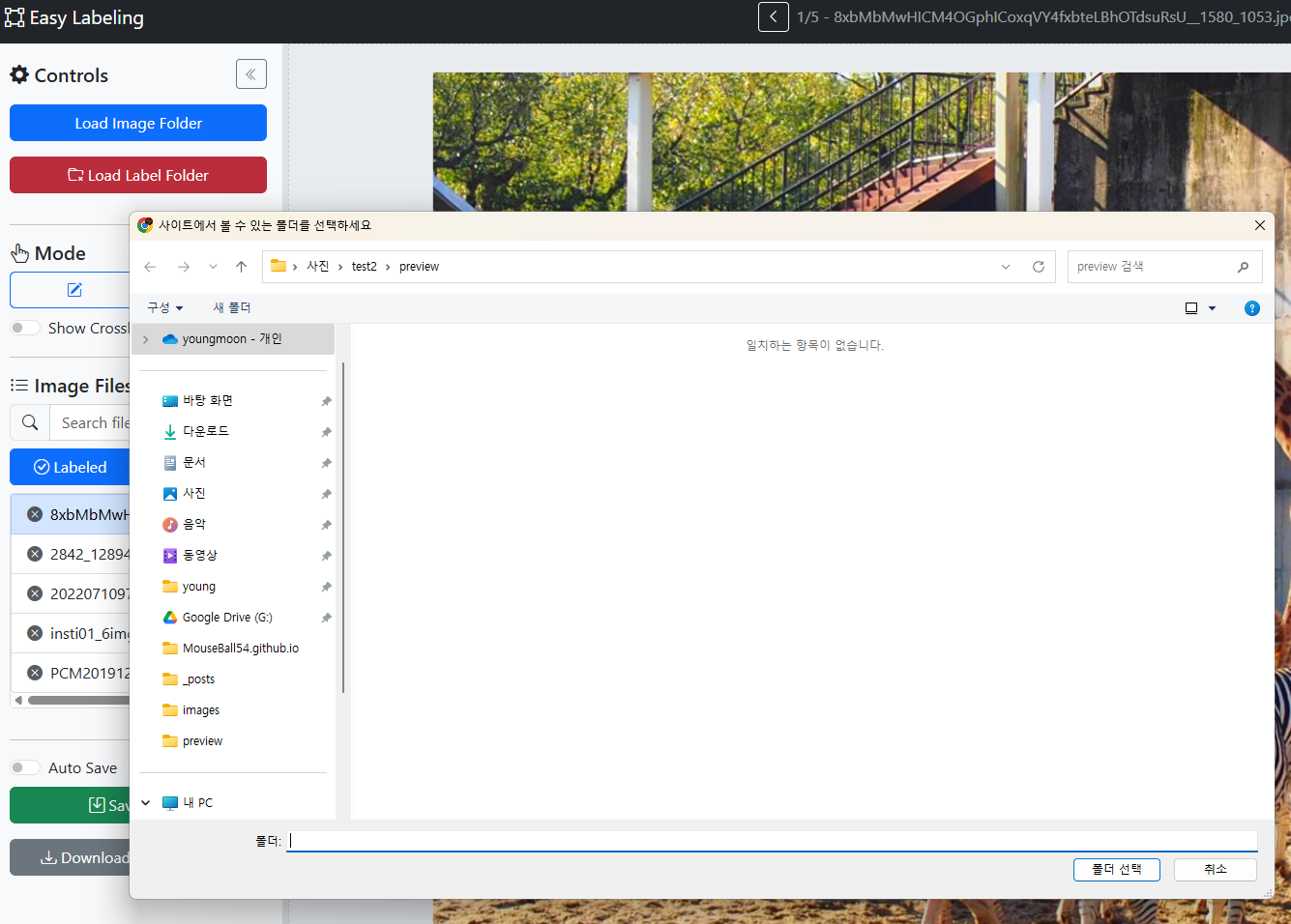
1.4 Creating the Label Folder
- If there is no
labelfolder in the selected image folder, a notification window will appear asking if you want to create one. - Click “OK” to automatically create the
labelfolder, where your label data will be stored in the future.
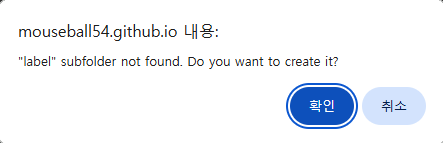
label folder creation confirmation window.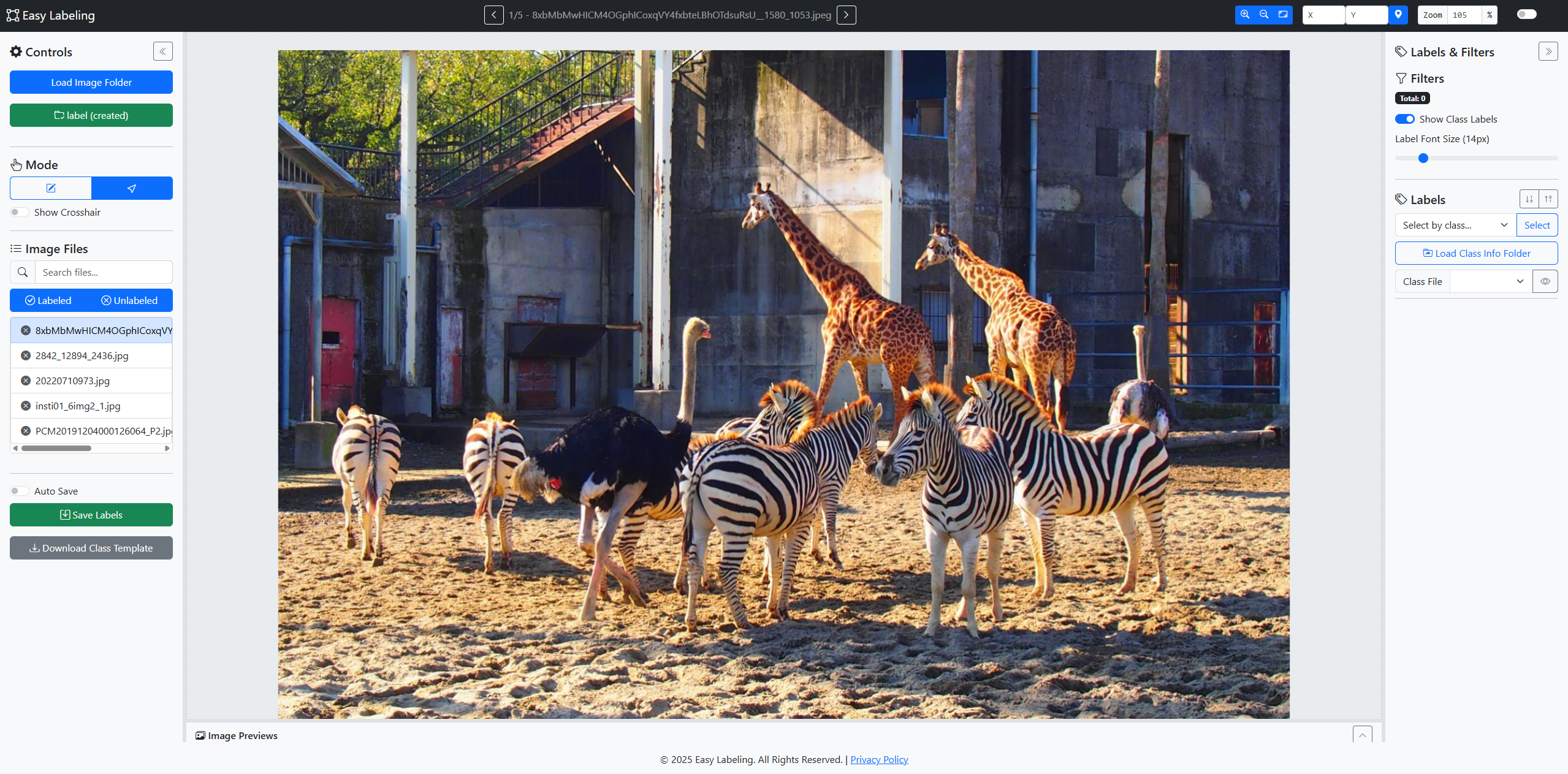
label (created).2. How to Switch Images
Easy Labeling provides various methods for quick navigation. Choose the method that is most convenient for you to increase your efficiency.
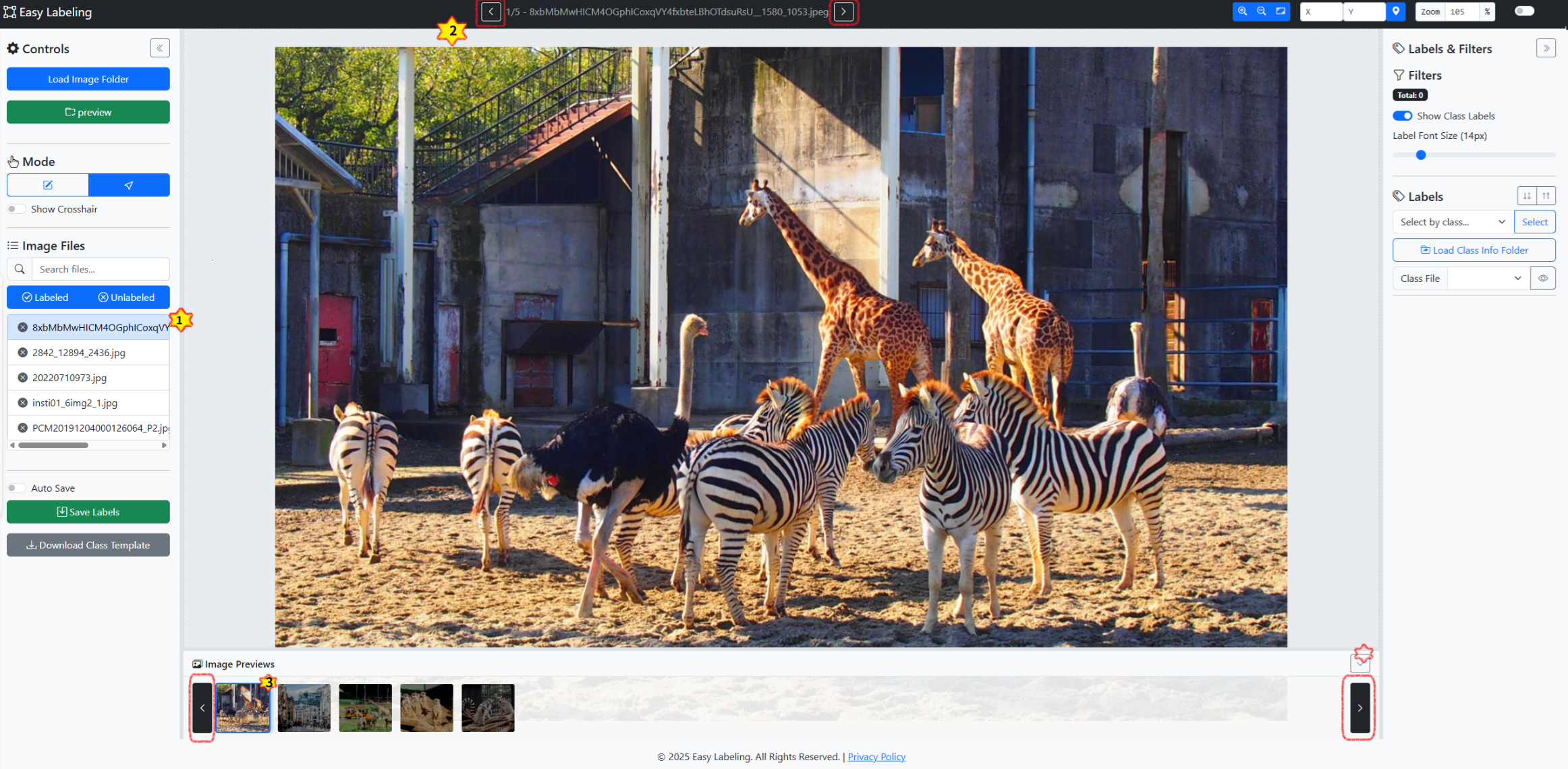
- Method 1: Click on the desired image directly from the
Image Fileslist on the left. - Method 2: Click the arrow icons (
◀,▶) at the top. - Method 3: Click the thumbnails or arrows in the
Image Previewswindow. - Method 4: Use the keyboard shortcuts
A(previous) andD(next).
3. Loading and Managing Label Data
3.1 Loading the Label Folder
Refer to the following methods to load existing label data or use a folder from a different location.
- If no
labelfolder exists, it is created automatically (label (created)). - If the folder is a subfolder of the image folder, it is loaded automatically (
label (auto)). - Manual selection: Click the
Load Label Folderbutton.
Search files...: Search by a part of the file name.Labeled/Unlabeledfilter: Classify files based on whether they have labels.
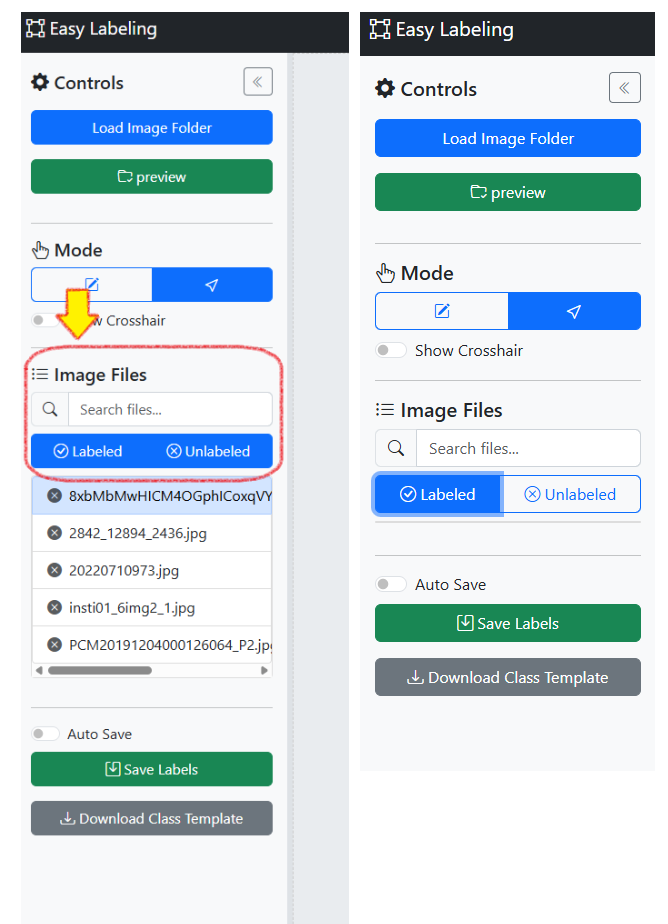
Labeled filter applied.3.2 Label Data Management Features
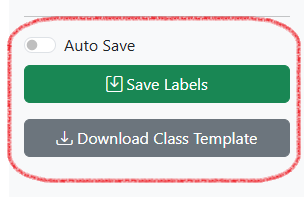
Auto Save, Save Labels, Download Class Template).Auto Save: Automatically saves when switching images.Save Labels(Ctrl + S): Manual save.Download Class Template: Downloads thecustom-classes.yamltemplate.
4. Using Class Description Files
The downloaded custom-classes.yaml file is provided in the following format. Modify the class IDs and names as desired.
# This is a YAML file for class definitions.
# Each line should be in the format: id: name
# The ID must be an integer.

0: person
1: car
2: bicycle
3: dog
10: traffic light
By modifying this file to create your own class list, you can work more intuitively as the specified names (person, car, etc.) will be displayed instead of class numbers during labeling. The current repository also documents class-file selection and create/edit modals, so keep class YAML files versioned when multiple datasets share similar names.
In this post, we covered the most basic setup: loading image folders, loading or creating the label folder for Detection, and using class files. If your project needs masks, use the Segmentation workflow separately and check that mask/<image>.png and mask/<image>.seg.json are created as expected.
Before a large batch, run one small pilot in Desktop Chrome or Edge and confirm that saves happen in the expected folder.
5. FAQ and Tips
FAQ
Q1. The image folder does not load. A. Check if you are using a supported extension (.jpg, .png, .bmp, tiff, etc.) and verify that you have allowed folder access permissions in your browser.
Q2. The label folder creation window does not appear.
A. Disable the browser’s pop-up blocker and then run Load Image Folder again.
Tips
- It is recommended to save manually with
Ctrl + Sbefore labeling. - Manage your class templates with a version control system like Git to maintain consistency when collaborating.
Source Notes
- Easy Labeling GitHub Repository: current tool scope, Detection/Segmentation workflows, save formats, browser requirements, and Electron build notes.
- MDN File System Access API: browser local-folder access background.
- Ultralytics Object Detection Dataset Docs: YOLO folder structure,
data.yaml, and label-format reference. - CVAT YOLO Format: YOLO annotation-format comparison point.
Related Reading
Continue with these related posts from the same topic area.


Leave a comment