Problem
You run pip install package-name, but Python stops with an error like this:
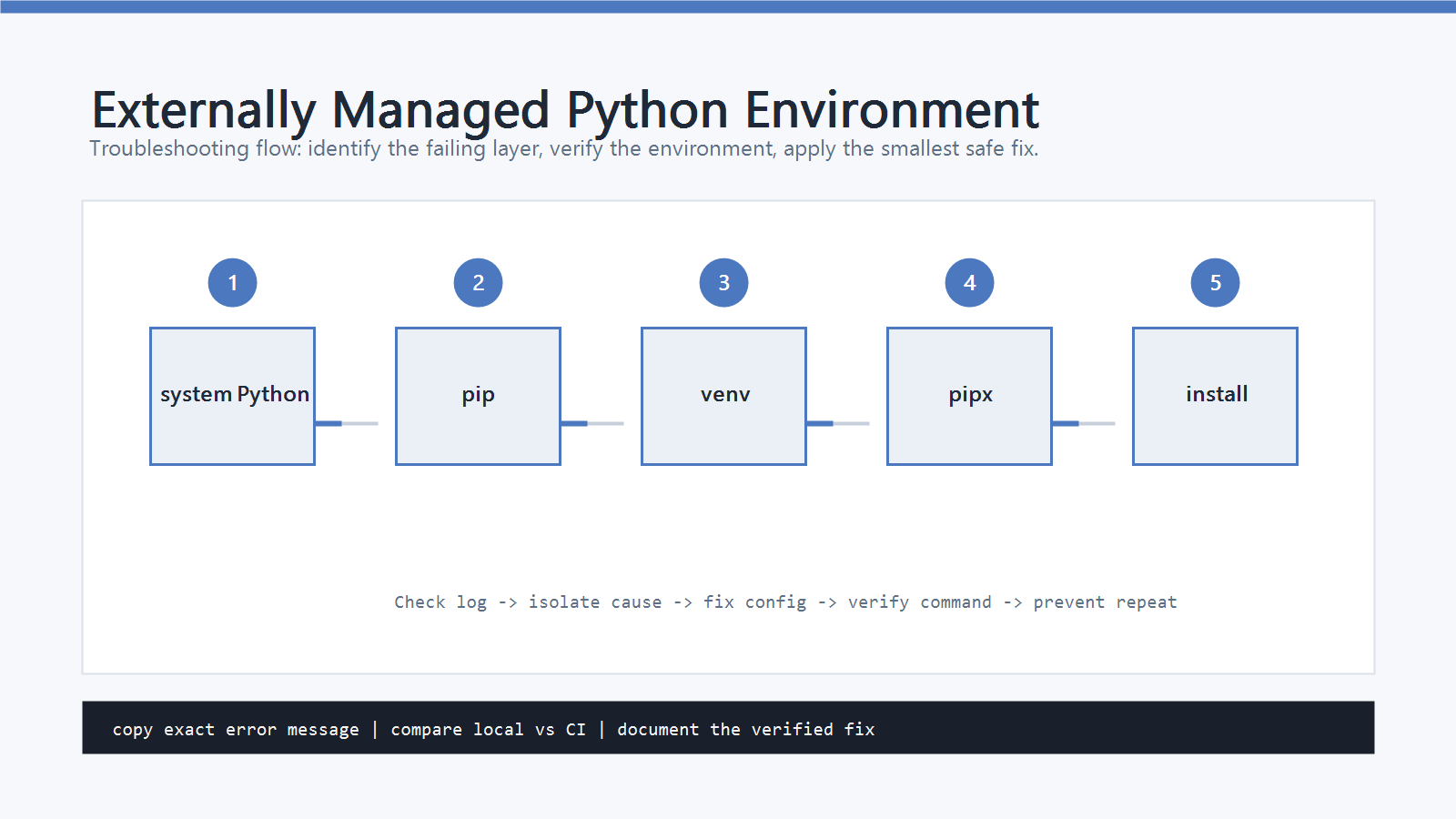
error: externally-managed-environment
The message often explains that the environment is externally managed and tells you to use a virtual environment, pipx, or your operating system package manager.
This commonly happens on Linux distributions and some package-managed Python installations.
It means pip is protecting a Python environment that is owned by the OS or another package manager.
Cause
The Python installation is not meant to be modified directly with global pip install.
Your OS package manager owns that Python environment.
If pip installs random packages into that system environment, it can break OS tools, Python libraries installed by the distribution, or future package manager upgrades.
That is why pip refuses the install and shows externally-managed-environment.
Quick Fix
Create a project virtual environment and install the package inside it.
python3 -m venv .venv
source .venv/bin/activate
python -m pip install --upgrade pip
python -m pip install package-name
Then verify:
python -m pip --version
which python
The paths should point inside .venv.
Step-by-Step Fix
1. Confirm You Are Using System Python
Run:
which python3
python3 -m pip --version
If the paths point to locations such as /usr/bin, /usr/lib, or a package-manager-controlled directory, you are likely using system Python.
That is fine for OS tools. It is not ideal for project dependencies.
2. Create a Virtual Environment
From your project directory, run:
python3 -m venv .venv
Activate it:
source .venv/bin/activate
Upgrade packaging tools:
python -m pip install --upgrade pip setuptools wheel
Now install the package:
python -m pip install package-name
This keeps project packages separate from the OS-managed Python installation.
3. Use pipx for Python CLI Tools
If you are installing a command-line tool, pipx may be a better option than a project venv.
Examples of CLI tools include formatters, linters, and small Python utilities.
Install with:
pipx install tool-name
pipx creates an isolated environment for the tool and exposes the command globally.
This avoids polluting system Python.
4. Use the System Package Manager for System Packages
If the package is needed by the operating system or a system-level Python tool, install it with the OS package manager.
For example, on Debian or Ubuntu:
sudo apt install python3-package-name
Use this for system packages, not ordinary project dependencies.
For project work, prefer .venv.
5. Understand –break-system-packages
Some error messages mention:
python3 -m pip install package-name --break-system-packages
Treat this as a last resort.
It tells pip to ignore the protection and install into the externally managed environment anyway.
This can create hard-to-debug problems:
- OS Python packages may be overwritten.
- Package manager upgrades may conflict with
pippackages. - System tools that depend on Python may break.
- Future installs may behave differently across machines.
Use --break-system-packages only when you understand the risk and intentionally want to modify that Python installation.
How to Verify
After using a virtual environment, run:
which python
python -m pip --version
python -c "import sys; print(sys.executable)"
Expected output should reference your project .venv.
Then check the package:
python -m pip show package-name
python -c "import package_name; print('import ok')"
Remember that the install name and import name may differ.
For example, opencv-python is imported as cv2.
Common Mistakes
- Running
sudo pip installto bypass the error. - Using
--break-system-packagesas the first fix. - Installing project dependencies into system Python.
- Forgetting to activate
.venvbefore runningpip install. - Using plain
pipinstead ofpython -m pip. - Confusing CLI tools with project libraries. CLI tools often fit
pipx; project libraries fit.venv.
Professional Depth Check
For How to Fix externally-managed-environment in Python, the practical standard is not whether the reader can repeat one instruction once. Treat the topic as a reproducible debugging procedure: verify interpreter path, virtual environment, package version, and input file or data boundary before drawing a conclusion. The result should be written as a small decision record, because future readers need to know which fact was observed, which assumption was used, and which condition would change the answer.
Evidence That Makes the Guidance Reliable
Use objective evidence before changing a workflow. Good evidence includes python --version, python -m pip show, the full traceback, and a minimal script. If two pieces of evidence conflict, keep the conflict visible instead of smoothing it over. For example, a successful quick fix is still weak evidence if the same input, account, dependency, or device state has not been tested again. A durable article should help the reader distinguish a confirmed fix from a plausible fix.
Review Table
| Review Item | What To Confirm | Why It Matters |
|---|---|---|
| Scope | The exact case covered by this article | Prevents over-applying the advice |
| Baseline | The state before any change | Makes rollback and comparison possible |
| Change | The smallest action taken | Reduces hidden side effects |
| Result | The observed output after the change | Separates evidence from expectation |
| Recheck | When to revisit the conclusion | Keeps the post accurate over time |
Related Posts
- How to Fix pip install Failed in Python
- Python venv Not Activating: How to Fix It
- How to Fix No module named pip in Python
FAQ
When should I use this guide?
Use it when you can reproduce the error and need a practical order for checking commands, versions, paths, permissions, and logs.
What should beginners verify first?
Start with the exact error message, the command you ran, the operating system, and the tool version. These details usually narrow the cause faster than changing many settings at once.
Which keywords should I search next?
Search for “How to Fix externally-managed-environment in Python” together with the exact error text, version, operating system, and tool name used in your environment.


Leave a comment